
OrderLine

Print Orders
OrderLine prints receipts on any printer connected to your tablet, PC, or mobile via USB or Bluetooth.
Certain cloud printer models can also be configured to print automatically when an order is received or reaches a predefined status, even when OrderLine is not running. See Cloud Printers for the list of compatible models and how to set them up.
Print an Order
To print a receipt manually, open the order details and click PRINT. When more than one printer is available, click the down arrow next to PRINT and select a specific printer. Cloud printers are those with a MAC address shown next to their name.
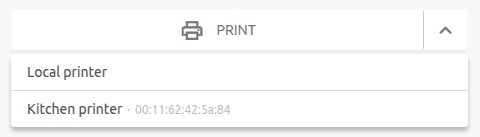
For local printers, OrderLine opens the system print dialog. Cloud printers print the receipt immediately.
Receipt Content
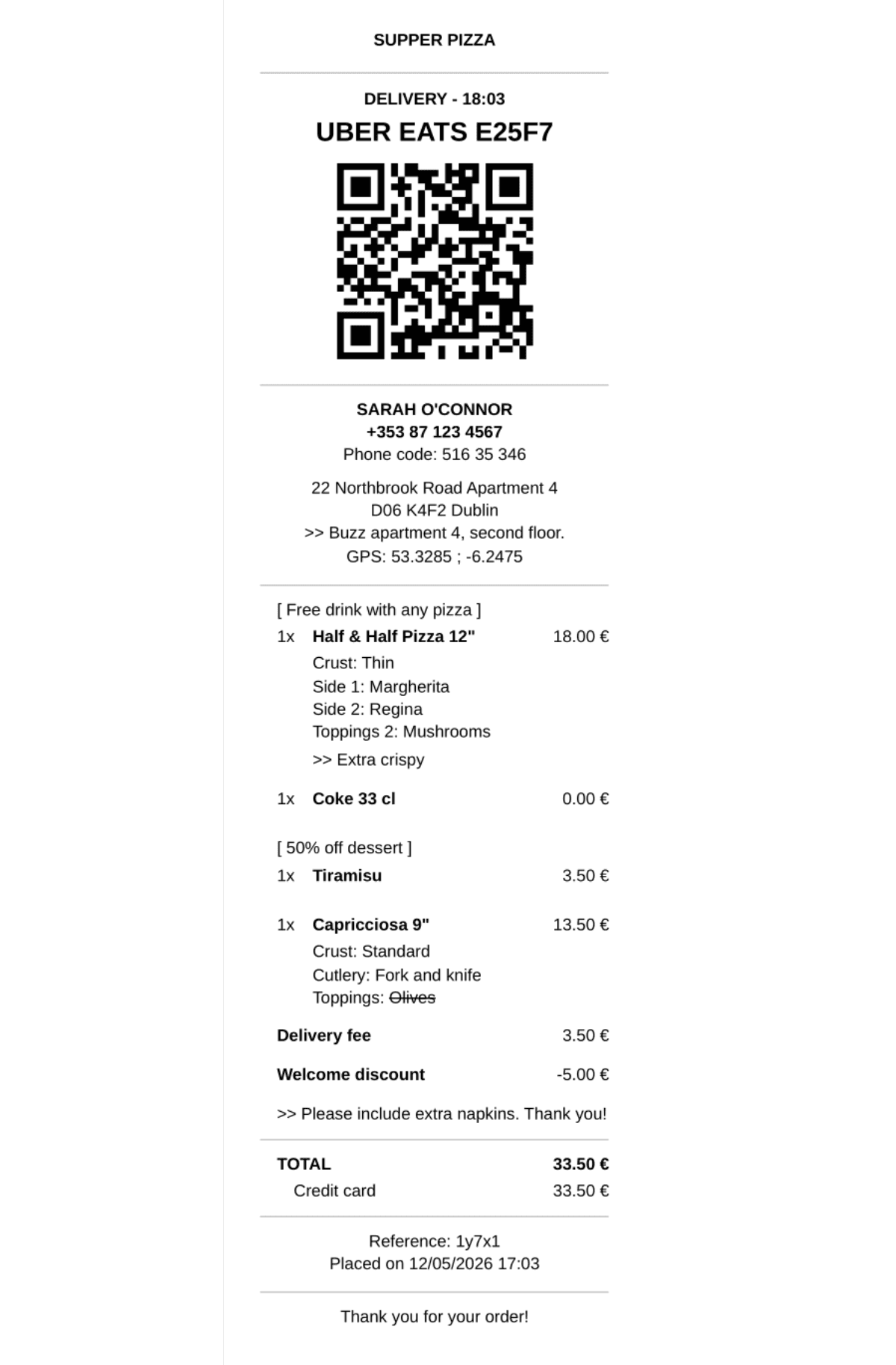
Receipts include the following sections, from top to bottom:
- Location name, or brand name if you operate multiple brands from this location.
- Location address if defined.
- Service type (delivery, collection, or eat-in), expected time, order channel and collection code.
- QR code to scan to start the delivery, if available.
- Customer name, phone number, and phone access code.
- For delivery orders: delivery address, delivery notes, and GPS coordinates if available.
- Products grouped by deal, with quantities, options, and customer notes. Standard options that were removed are struck out.
- Charges, discounts, total amount, and payment due.
- Customer notes, if any.
- Loyalty card information: points earned and current balance, if available.
- Order reference and creation date.
- A customisable footer.
Sample receipt:
Cloud Printers
Supported Cloud Printers
OrderLine supports Star Micronics receipt and label printers compatible with CloudPRNT or CloudPRNT Next.
Some Star Micronics models are natively CloudPRNT-capable, and require no extra hardware or subscription:
- TSP100 IV (e.g. TSP143IV LAN, TSP143IV UE, TSP143IV X4)
- mC-Print2 (LAN variant)
- mC-Print3 (LAN/Wi-Fi variants)
- mC-Label2, mC-Label3 (LAN/Wi-Fi variants)
Other models become CloudPRNT-capable once fitted with the IFBD-HI01X or HI02X interface card (sold separately):
- TSP650II, TSP700II, TSP800II
- SP700 / SP742 (impact kitchen printer)
Important details before you buy:
- CloudPRNT requires Ethernet or Wi-Fi. USB-only or Bluetooth-only models cannot be used as cloud printers, even if the rest of the model name is identical. Two SKUs that differ by a single suffix letter (e.g.
Ufor USB,LAN/UEfor Ethernet,WLAN/GTfor Wi-Fi,BTifor Bluetooth,X4for "all interfaces") can have very different connectivity. Always check the model spec sheet carefully. - The exact model number is printed on a label, usually stuck under the printer. Make sure the model on the label matches a CloudPRNT-capable variant.
- "Star Micronics Cloud" is not required. This is a separate service from Star, useful for monitoring fleets of printers but not used by OrderLine. CloudPRNT itself is free to use, with no licensing required.
Buying a Compatible Printer
If you don't already have a compatible printer, here are the Star Micronics ranges we recommend:
- mC-Print2: 58mm width. Printing uses polling (CloudPRNT), which introduces a latency of a few seconds, noticeable mainly for manually triggered prints.
- mC-Print3: 80mm width, compact, ruggedised for a kitchen environment. Immediate printing (CloudPRNT Next) for some models bought from summer 2024 onwards, or polling (CloudPRNT) for other models.
- TSP143IV: 80mm width, not ruggedised. Immediate printing (CloudPRNT Next).
You can buy these models from a Star Micronics reseller, some of whom sell online. Search the web to find one that suits you.
IMPORTANT NOTE: Be sure to choose a model that is CloudPRNT or CloudPRNT Next-compatible. The Ethernet or Wi-Fi models in the ranges above generally are, unlike USB or Bluetooth models. If in doubt, feel free to send us the exact model you are considering buying at support@hubrise.com.
As a guide, a CloudPRNT-compatible mC-Print3 printer costs around €300 (or equivalent in your local currency). Used printers are sometimes available on eBay or other marketplaces.
There is no subscription fee. The printer connects directly to HubRise servers, with no third-party cloud service to pay for.
Setting Up a Cloud Printer
1. Connect the Printer to Your Network
Plug it into your router (Ethernet) or join it to your Wi-Fi. Refer to the printer's quick-start guide or contact your reseller if you need help with this step.
2. Open the Printer's Configuration
You have two options:
- Star Quick Setup Utility (free, iOS / Android): pair your phone or tablet with the printer, then open Device Settings > Star CloudPRNT Settings.
- Web interface: find the printer's IP address (printed on the self-test page if you hold Feed while powering on), browse to it, log in, and open Network Configuration > CloudPRNT in the left sidebar.
3. Configure CloudPRNT
The web interface appears as follows (the mobile app exposes the same fields):
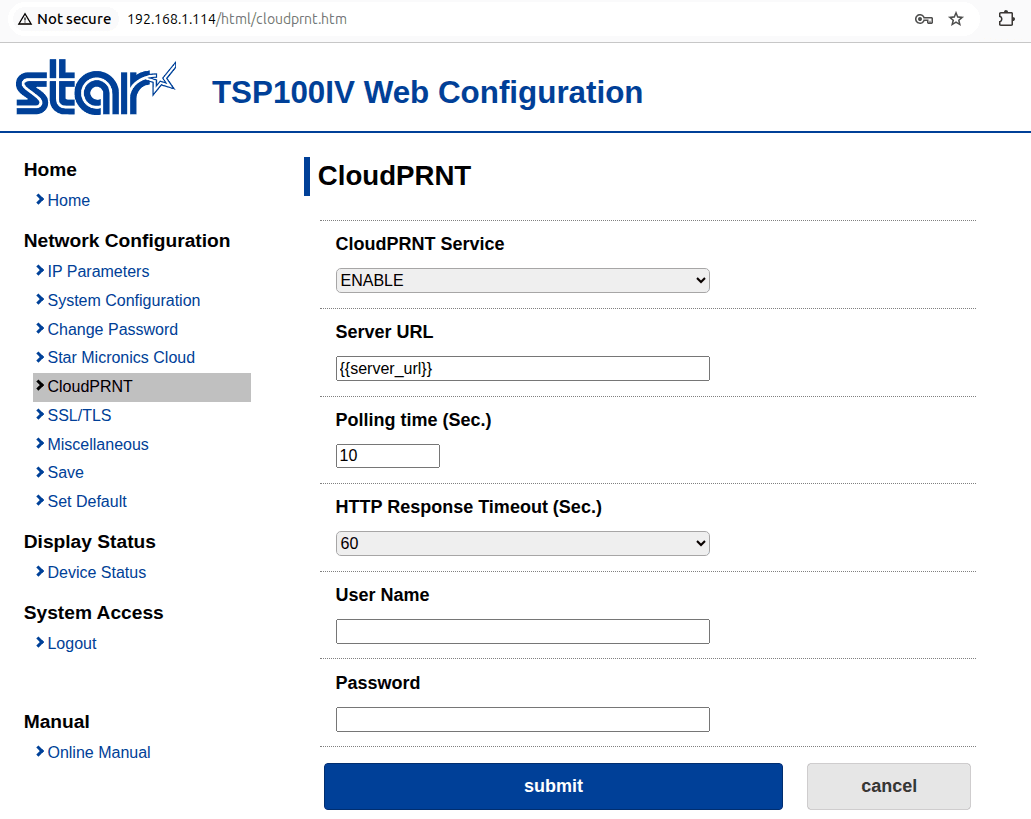
Set the fields as follows:
- CloudPRNT Service:
ENABLE - Server URL: copy this from your Printing settings page; it is shown directly below the Cloud printers heading and looks like
https://orderline.hubrise-apps.com/star/{ID}/cloudprnt - Polling time: leave at
5 - HTTP Response Timeout: leave at
60 - User Name: leave blank
- Password: copy the Setting password shown directly below the server URL on the same settings page. Click Reveal to display it.
4. Save and Restart
Click submit and wait for the printer to reboot. The new settings take effect after the restart.
5. Authorise the Printer
Return to the Printing settings page. Within a few seconds of the reboot, your printer will appear with a "wants to connect" prompt:

Click Authorise. The printer is now ready to use.
If the Setting Password Is Compromised
If you suspect the setting password has leaked (e.g. it was visible in a screenshot or disclosed to an unauthorised party), click Regenerate next to the password on the Printing settings page. After regenerating, every printer's CloudPRNT configuration must be updated with the new password.
Cloud Printer Settings
Naming the Printer
Click the printer's name (it starts as "Unnamed printer") and assign a label that matches its location, e.g. Kitchen printer or Bar receipt printer. The MAC address is shown below for identification.
Receipt Language and Footer
The receipt's language and the optional footer (a short free-text message printed at the bottom of every receipt, e.g. opening hours or a thank-you note) are configured globally for all your cloud printers in Printing settings.
Automatic Printing
Each printer has its own Automatic printing trigger:
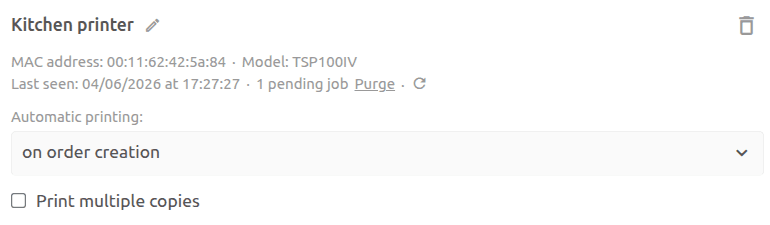
Choose when this specific printer should print receipts:
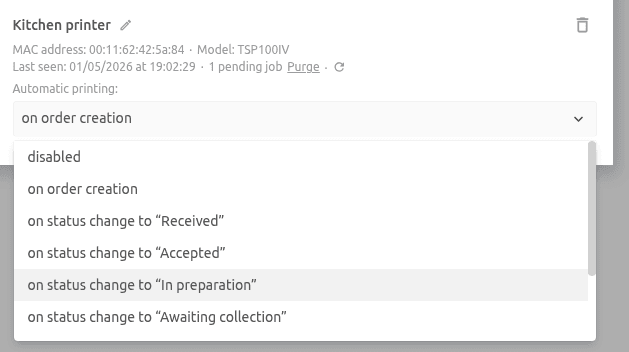
Set the trigger to order creation, to a transition to a specific status (Received, Accepted, In preparation, etc.), or leave it disabled if you would rather print manually.
When automatic printing is enabled, you can also print several copies of each receipt: tick Print multiple copies and set the Number of copies (up to 5). Each time the trigger fires, the printer produces that many receipts, separated by a cut. This setting applies to automatic printing only; manual prints always produce a single receipt.
Frequently Asked Questions
What Happens If the Printer Is Turned Off When an Order Comes In?
Print jobs are queued on HubRise servers. As soon as the printer is back online, it will print everything that was waiting, unless you have manually purged the queue. Jobs older than 6 hours are automatically cleared.
To check the queue and purge it if needed, open the Printing settings page:
Each printer shows the number of pending jobs. Click the refresh icon first to make sure the count is up to date, then click Purge to discard the pending jobs (e.g. after closing for the day, to avoid printing yesterday's orders).