
OrderLine

Inventory
The Inventory tab lets you manage the availability of products and options across your connected ordering platforms. Items can be marked as available or unavailable, with optional duration. Stock quantities can also be tracked if enabled in Inventory Settings.
User Interface
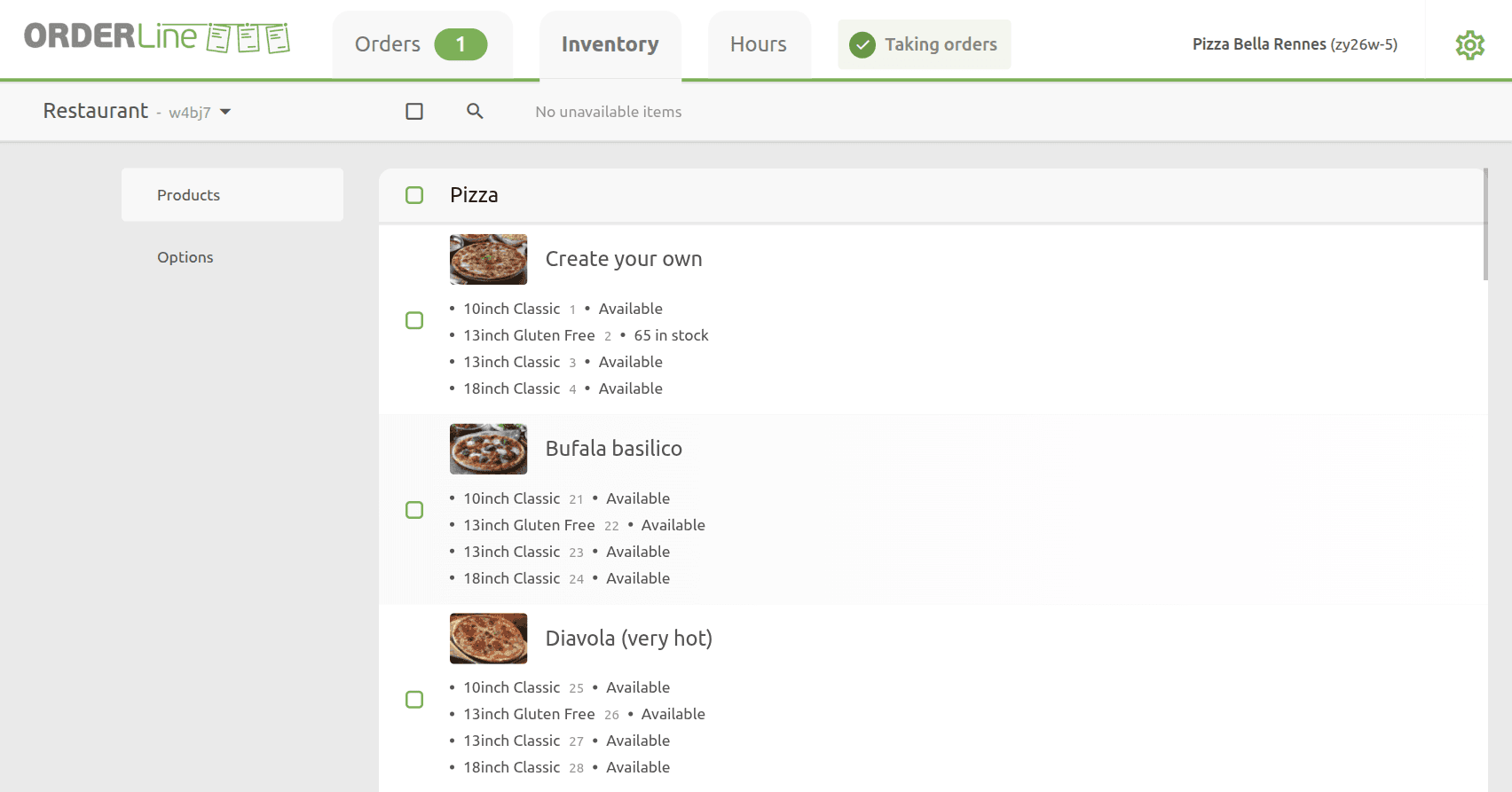
The toolbar at the top of the page provides the following controls:
- Catalog selector: a dropdown on the left to switch between catalogs.
- Select all checkbox: select or deselect all visible items for bulk update.
- Search: click the magnifying glass icon to filter items by name or ref code.
- Unavailable filter: if any items are currently unavailable, the toolbar displays a filter to show only those items.
The left sidebar has two tabs:
- Products: grouped by category, with the availability status displayed for each SKU. Products with multiple SKUs list each one beneath the product name.
- Options: grouped by option list, with the availability status displayed for each option.
Update Availability
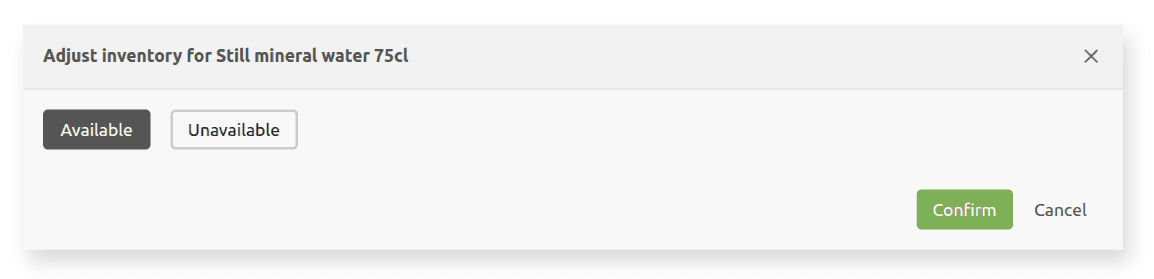
To update the availability of an item, click on it. A dialog opens with two options:
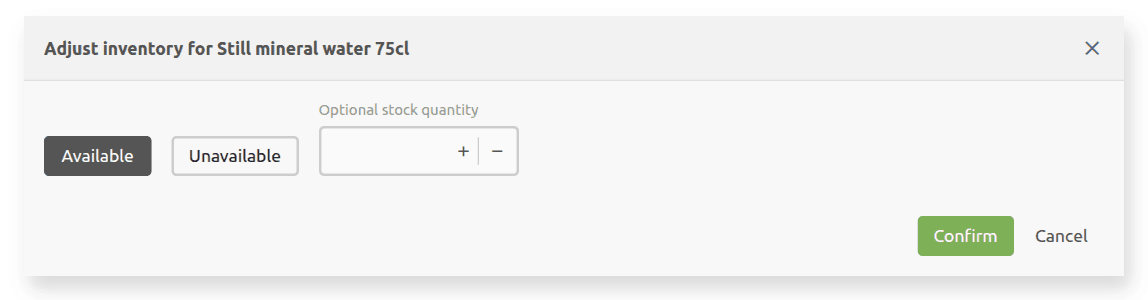
- Available: marks the item as available. When stock counters are enabled in settings, an Optional stock quantity field is also displayed. To enable stock counters, see Inventory Settings.
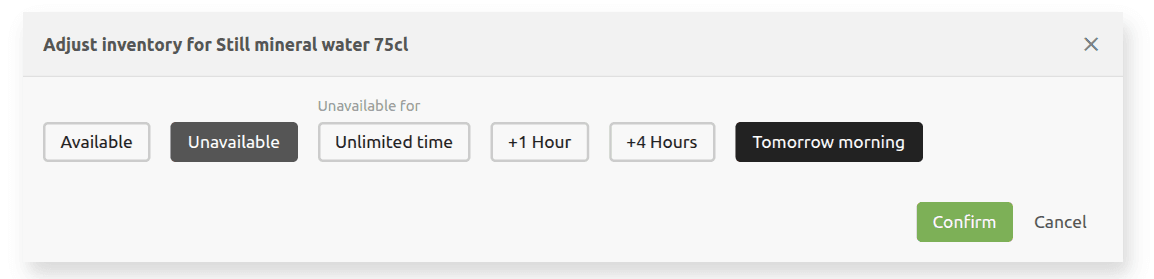
- Unavailable: marks the item as unavailable. When selected, duration options appear: Unlimited time, +1 Hour, +4 Hours, or Tomorrow morning.
Click Confirm to apply the change, or Cancel to discard it.
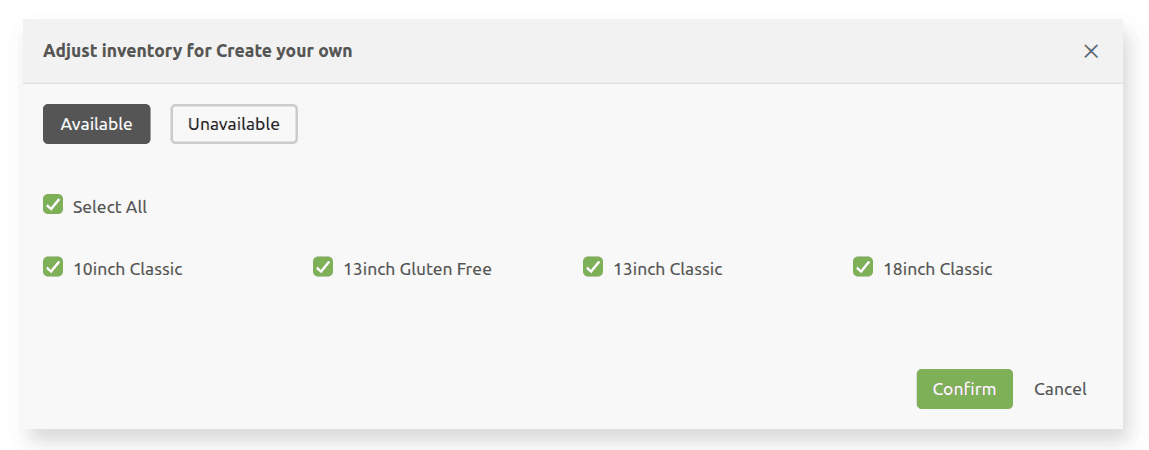
For products with multiple SKUs, the dialog includes a SKU selector. Use Select All to update all SKUs at once, or select individual SKUs.
Bulk Update
You can update the availability of multiple items at once:
- Select items individually by clicking their checkboxes, or select all visible items using the checkbox in the toolbar. Visible items are those matching the current search and availability filters.
- When items are selected, the Adjust inventory for N selected button appears in the top right of the toolbar, where N is the number of selected items.
- Click the button to open the same dialog as for a single item. If the selection includes multi-SKU products, the SKU selector lets you choose which SKUs to update.
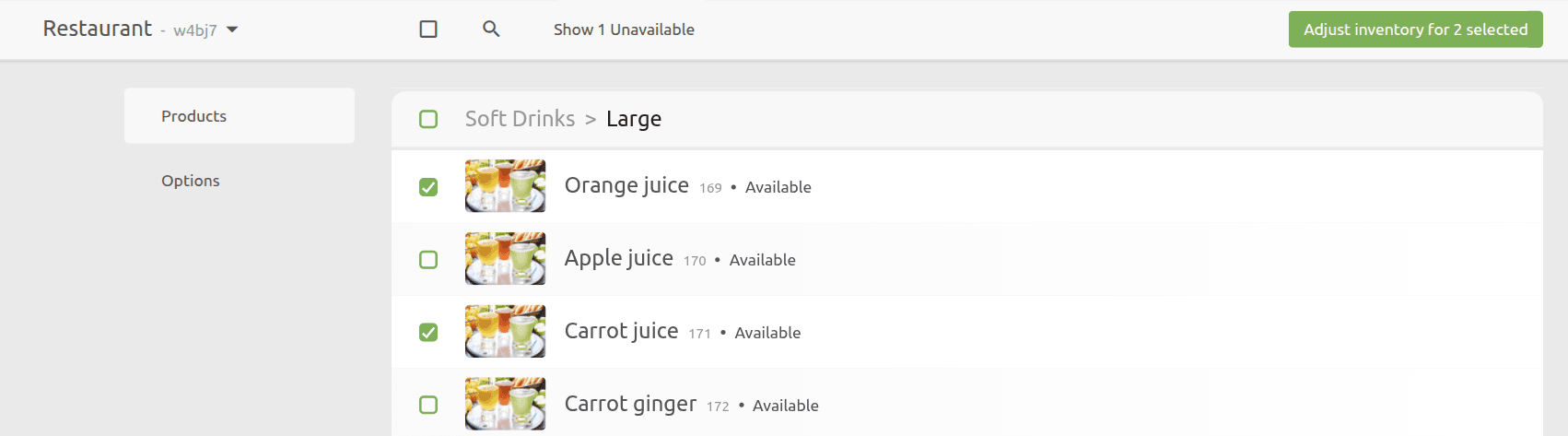
For example, to make all unavailable items available, select all items using the toolbar checkbox, and mark them as available in a single operation.