
Lightspeed Restaurant
- home
- Apps
- Lightspeed Restaurant
- Pull the Catalog

Lightspeed Restaurant
Lightspeed Restaurantexpand_more
Pull the Catalog
This page describes how to pull a catalog from Lightspeed into HubRise and what information is received in HubRise.
Pulling the Catalog into HubRise
There are two methods to pull a catalog from Lightspeed into HubRise:
- Using Lightspeed Restaurant Bridge
- Using a third-party solution
Pulling from Lightspeed Restaurant Bridge
To pull a catalog using the Lightspeed Restaurant Bridge, follow these steps:
- From the Lightspeed Restaurant Bridge main page, select the Actions tab.
- Click Pull catalog.
- Click Confirm when prompted.
IMPORTANT NOTE: This operation will replace your current HubRise catalog.
Depending on the size of your catalog, it might take a few minutes for your HubRise catalog to be fully updated.
If the operation fails with a 403 Forbidden error, refer to Forbidden Error When Pulling the Catalog for the solution.
Pulling from a Third-Party Solution
Some integrated solutions, such as digital ordering systems, offer a catalog pull feature. If your solution supports this feature, you will typically find a button labeled "Update Catalog" or something similar in their back office.
To use this feature:
- Check with your solution provider to see if they support catalog pulls from Lightspeed.
- If supported, look for the catalog update option in your solution's back office.
- Use this option whenever you want. The catalog pull may take a few minutes to complete, depending on the size of your catalog.
Information Sent to HubRise
The following sections provide more details on how your Lightspeed catalog is mapped to HubRise.
Categories
The groups in your Lightspeed menu are mapped to categories of products on HubRise. Nested groups become subcategories.
The category name is sent to HubRise. Lightspeed does not support category descriptions, so these are not imported.
Products and Skus
Lightspeed supports skus, but not products. For every item in the Lightspeed catalog, Lightspeed Restaurant Bridge creates a corresponding sku in HubRise with the following information (if available):
- Sku name
- Sku ref code
- Description
- Images
- Price and variant prices (see Variants)
- Tax rate
- Allergens and alcohol percentage for items marked as containing alcohol
- Options
Variants
Lightspeed lets you set multiple prices per item. For example, an item may have a default price, a takeaway price, and a price for a specific delivery platform.
Every price name found in your menu becomes a variant in HubRise.
When multiple prices are set and one of the prices is zero, the item is marked as unavailable for this variant in HubRise.
Options
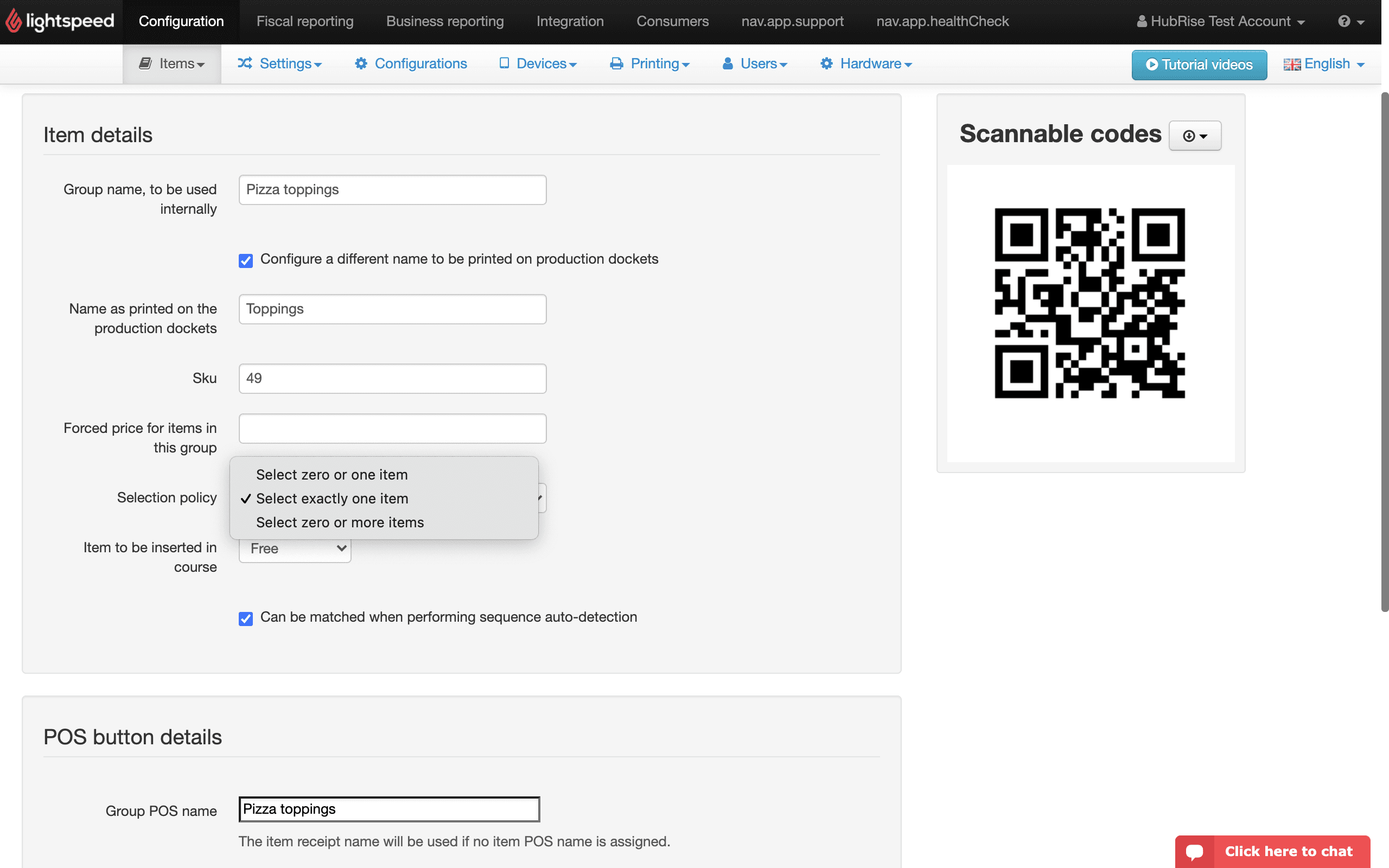
Lightspeed supports groups of items, which are sent to HubRise as option lists and options.
The HubRise option type is selected according to the following rule:
- A group with selection policy Select exactly one item is converted to a single-choice option list.
- A group with any other selection policy is converted to a multiple-choice option list.
Lightspeed Production Instructions
Lightspeed supports production instructions, which are generally preparation instructions for the kitchen. These are sent to HubRise as multiple-choice options with no associated price.
Technical Reference
The following sections provide technical details on how your Lightspeed catalog is encoded in HubRise.
Categories
For every category, the following fields are sent to HubRise:
name: The name of the category.ref: A sequential numerical number is generated automatically for every category.parent_ref: The ref of the parent category, or empty for a top-level category.
Skus
For every sku, Lightspeed sends the following information to HubRise:
name: The name of the sku.description: The description of the sku.image_ids: The list of image IDs associated with the sku.tax_rate: The tax rate, applied identically to all service types.nutrition: The nutritional information, when available.nutrition.allergens: The list of allergens. Lightspeed allergen codes are mapped to HubRise codes, and umbrella codes (such as "nuts" or "cereals") are expanded to every allergen in the family.nutrition.alcohol_percentage: The alcohol percentage, for items marked as containing alcohol.
skus: A list containing a single sku.skus[0].ref: The ref code of the sku, which will be passed along in orders.skus[0].price: The default price of the sku.skus[0].option_list_refs: The list of options attached to the sku.skus[0].price_overrides: The variant prices of the sku, see Variants.
Variants
The catalog's data.variants array lists every Lightspeed price name imported as a variant, each with:
ref: A sequential reference.name: The Lightspeed price name (for exampleTakeawayorUber Eats).
On each product sku, skus[0].price holds the default price and skus[0].price_overrides holds the variant prices.
Price overrides are only set for skus, not for options.
Options
Deal groups are created as option lists with a sequential ref that starts with deal_. Each option list contains selection constraints:
min_selections: The minimum number of options to select.max_selections: The maximum number of options to select.
For every option, the following information is sent to HubRise:
name: The name of the option.ref: The ref code of the option.price: The price of the option (the sum of its base price and its extra price in the deal).
Production instruction groups are also mapped to option lists, with max_selections set to 1 unless multiple selections are permitted. For every instruction, the following information is sent to HubRise:
name: The name of the instruction.ref: The ref code of the instruction, preceded by a+sign.price: Always 0.
Inventory
If inventory sync is enabled, pulling the catalog also refreshes your HubRise inventory from Lightspeed. For more information, see Synchronise Inventory.