
Lightspeed Restaurant
- home
- Apps
- Lightspeed Restaurant
- Configuration

Lightspeed Restaurant
Lightspeed Restaurantexpand_more
Configuration
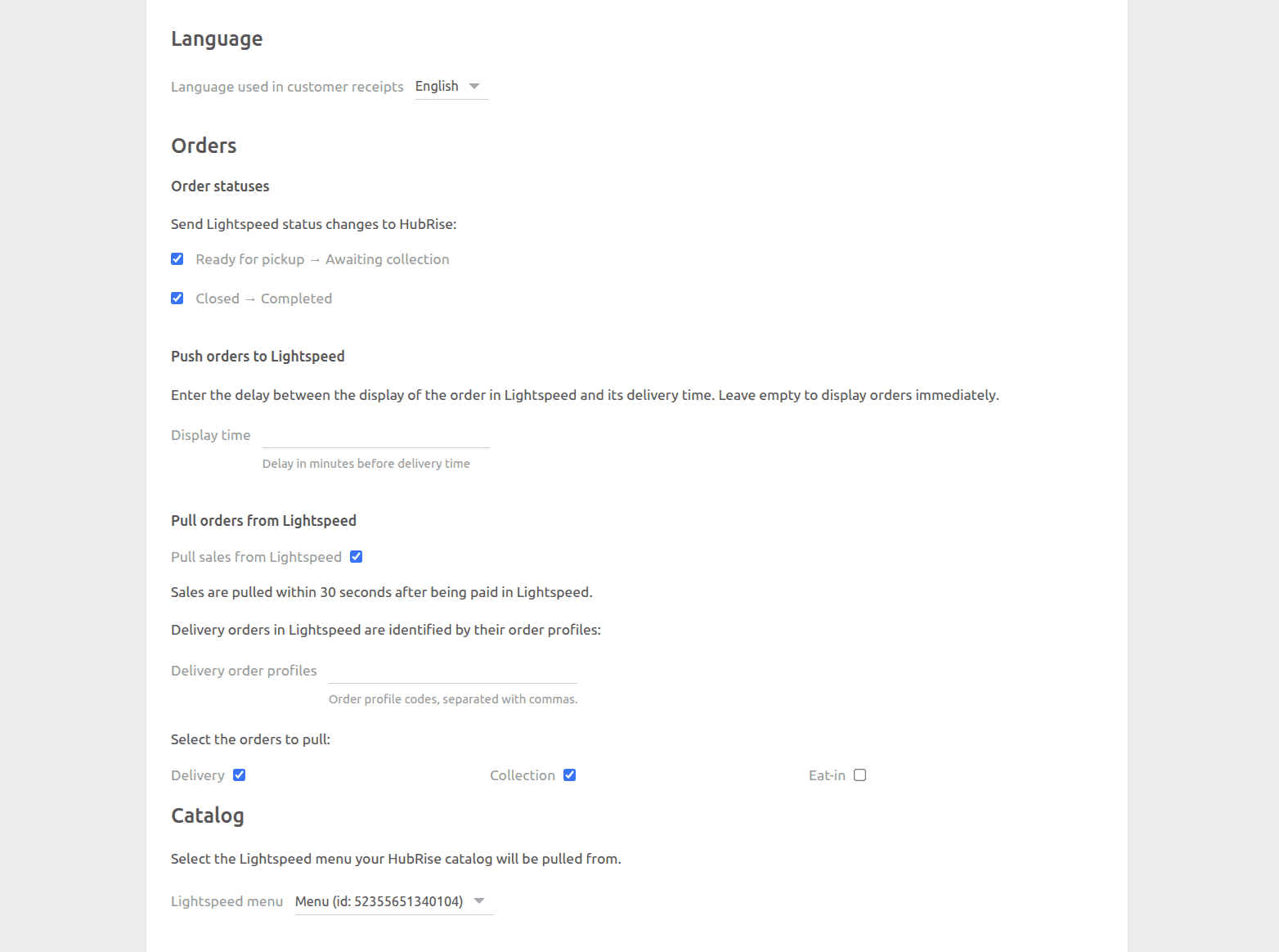
The configuration page allows you to customise the behaviour of Lightspeed Restaurant Bridge based on your preferences. These are divided into different sections for an easier navigation.
Language
Choose the language to use for generic items such as Delivery charge. These names may appear in customer receipts.
Orders
From this section, you can customise how Lightspeed Restaurant Bridge handles orders.
Order Statuses
Lightspeed Restaurant Bridge can send Lightspeed status changes to HubRise. Two options are available:
- Ready for pickup → Awaiting collection: When an order is marked as ready on the Lightspeed kitchen display, it is updated to
awaiting_collectionin HubRise. - Closed → Completed: Lightspeed closes orders as soon as they are paid. When this option is enabled, the order is marked as
completedin HubRise.
Both options are enabled by default. If you use a different app to update order statuses in HubRise, for example a Kitchen Display System, you can disable one or both options.
Push Orders to Lightspeed
Orders are pushed to Lightspeed as soon as they are created in HubRise.
If you want to delay orders until shortly before the delivery time, you can set the Display time field. If you leave it empty, orders will be displayed immediately on Lightspeed.
Pull orders from Lightspeed
By default, Lightspeed Restaurant Bridge does not pull Lightspeed sales into HubRise.
To enable this feature, select Pull sales from Lightspeed. You can then choose which service types to pull:
- Delivery: Orders with an account profile code matching those configured in the Delivery order profiles field.
- Collection: Take-away orders that are not matched as delivery.
- Eat-in: Dine-in orders.
The Delivery order profiles field lets you specify which Lightspeed account profile codes should be treated as delivery orders. Enter one or more codes, separated by commas (for example: DELIVERY, UBER_EATS, DELIVEROO).
Catalog
This section allows you to choose which Lightspeed menu to use when you want to pull your catalog to HubRise. Select a value from the drop-down list.
Inventory
Select Sync inventory with Lightspeed to keep your HubRise inventory in sync with Lightspeed's stock levels. Enabling this option overwrites your HubRise inventory with Lightspeed's stock levels. For more information, see Synchronise Inventory.
Save the Configuration
To save the configuration, click Save at the top of the page.
Reset the Configuration
If you need to reset the configuration, click Reset the configuration at the bottom of the page.
IMPORTANT NOTE: Resetting the configuration will instantly disconnect the bridge from Lightspeed Restaurant.
Resetting the configuration does not delete the operation logs displayed in the main page.