
Bolt Bridge
- home
- Apps
- Bolt Bridge
- User Interface

User Interface
From Bolt Bridge, you can read the logs of all the operations between HubRise and Bolt, and access the configuration settings of the integration.
Latest Operations
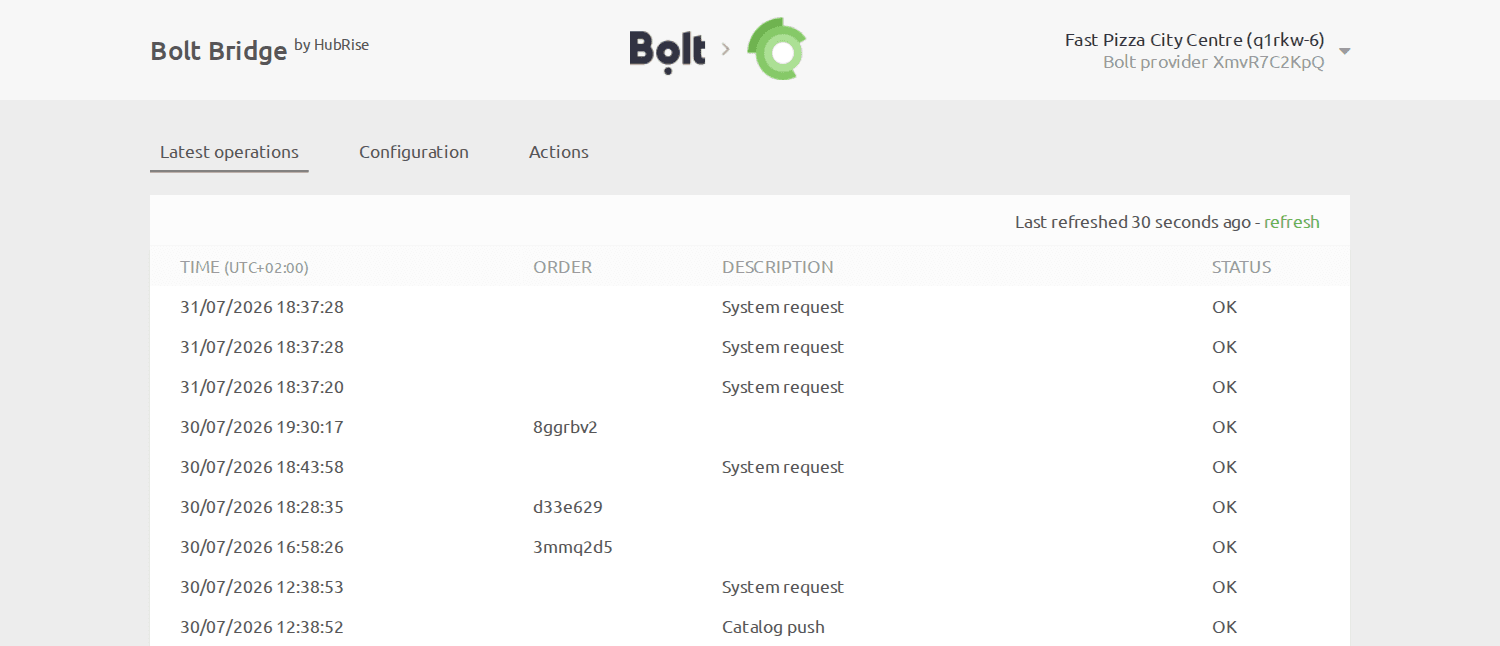
This is the default page when you open Bolt Bridge. It displays the latest API operations between HubRise, Bolt, and Bolt Bridge.
Operations can either be related to a specific order, or be generic system requests performed by Bolt Bridge.
Each row in the page shows the following information about an operation:
- TIME: The date and time of the order.
- ORDER: The HubRise order ID, for order operations.
- DESCRIPTION: An optional description for operations that are not related to a specific order. It could be empty, or inform of a specific action such as
System requestorCatalog push. - STATUS: The status of the order. The value
OKindicates that the order has been successfully sent, otherwise an error code will be displayed in red.
The System request label indicates that the operation is not related to a specific order.
Clicking on a row will open a new page displaying the logs associated with the operation.
Order Operation
Selecting an order operation from the list in the main page will display all the logs of the API requests exchanged between HubRise and Bolt via Bolt Bridge.
Requests are ordered with the latest on top, and those related to the same order event (order received, order cancelled, etc.) are visually grouped together.
Each row in the logs displays the following information:
- Time: The date and time the request was sent.
- Direction: The apps sending and receiving the request, in the format Origin → Destination.
- Endpoint: The status of the request. The value
OKindicates that the request has been successfully received, otherwise a message will explain the type of error occurred.
Clicking on a request will expand it to reveal the detailed logs of the request and its response.
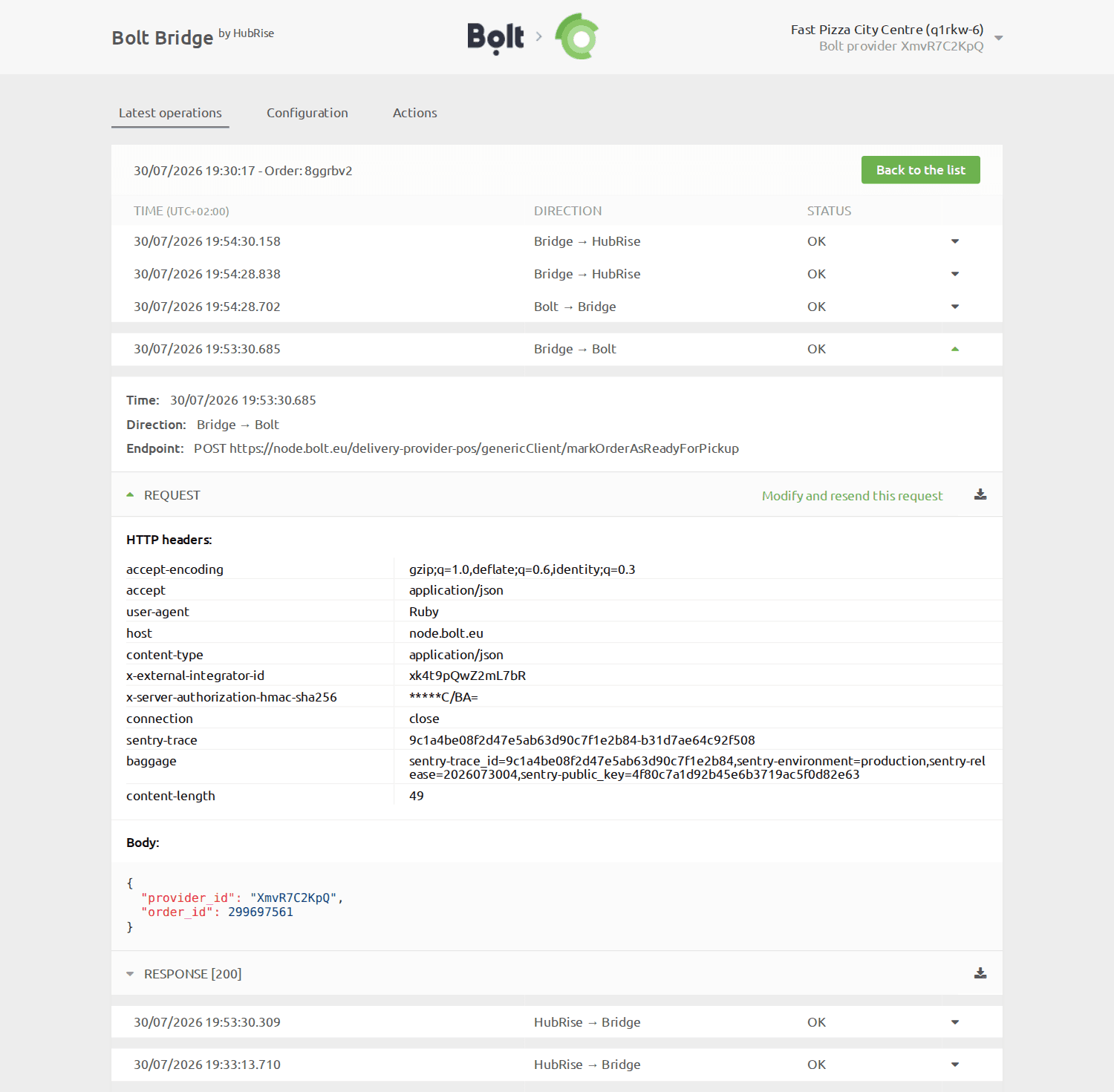
Logs are a powerful debugging tool in case of issues. To understand in detail how to read logs, see Understanding HubRise Logs.
System Request Operation
The layout of a system request page is identical to that of an order page.
System requests are generally sent by Bolt Bridge to notify HubRise about a change in the configuration or to fetch the most up-to-date information. As an example, system requests may include updates to the Bolt Bridge callback after a configuration change.
System request pages can provide useful debugging insights to support teams, but are rarely of interest to other users.
Configuration
To access the Bolt Bridge configuration page, click Configuration at the top of the screen.
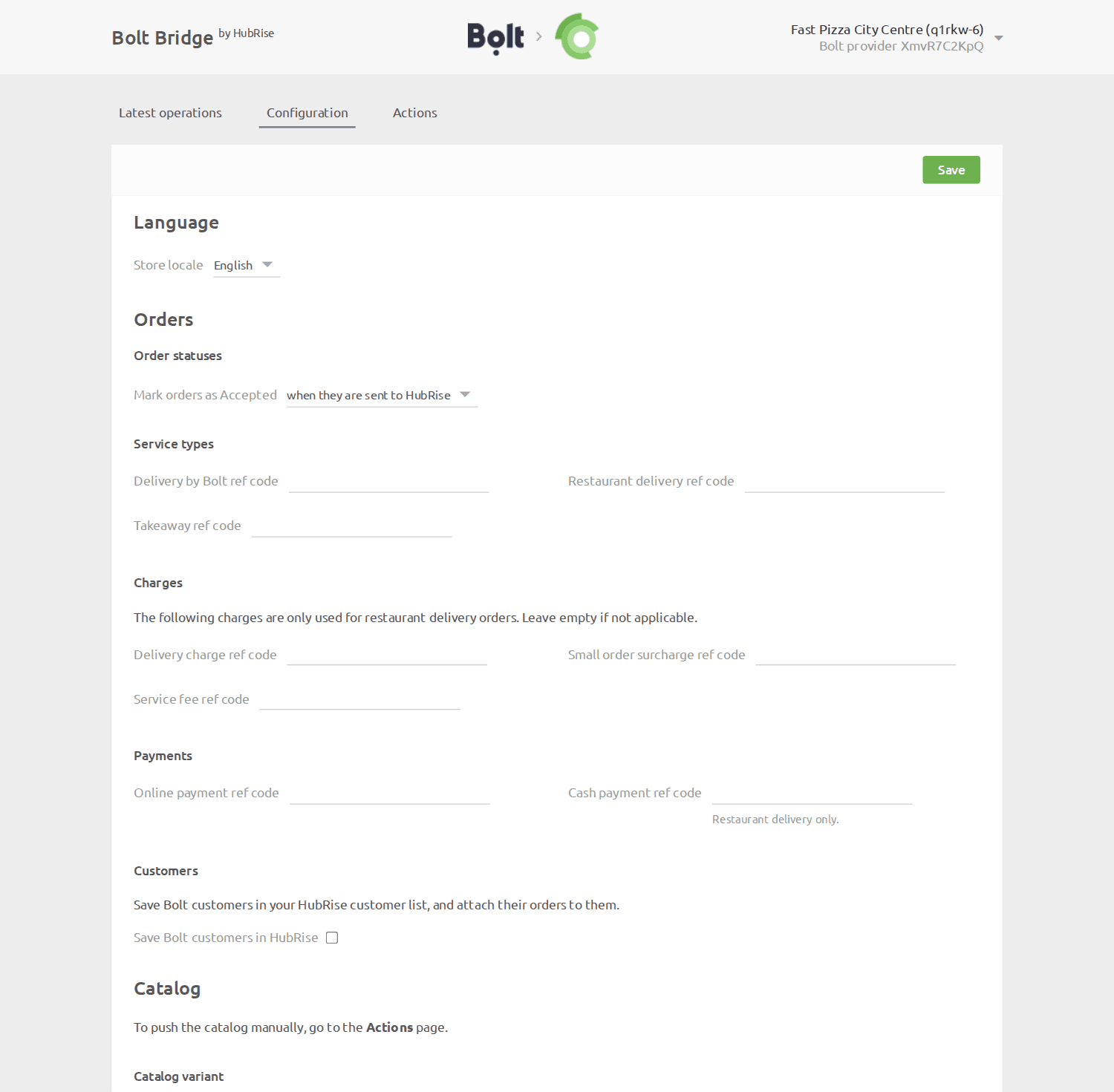
From this page, you will be able to customise the behaviour of Bolt Bridge. For more details, see Configuration.
Actions
To access the actions page, click Actions at the top of the screen. If the link is not visible, first complete the configuration of Bolt Bridge.
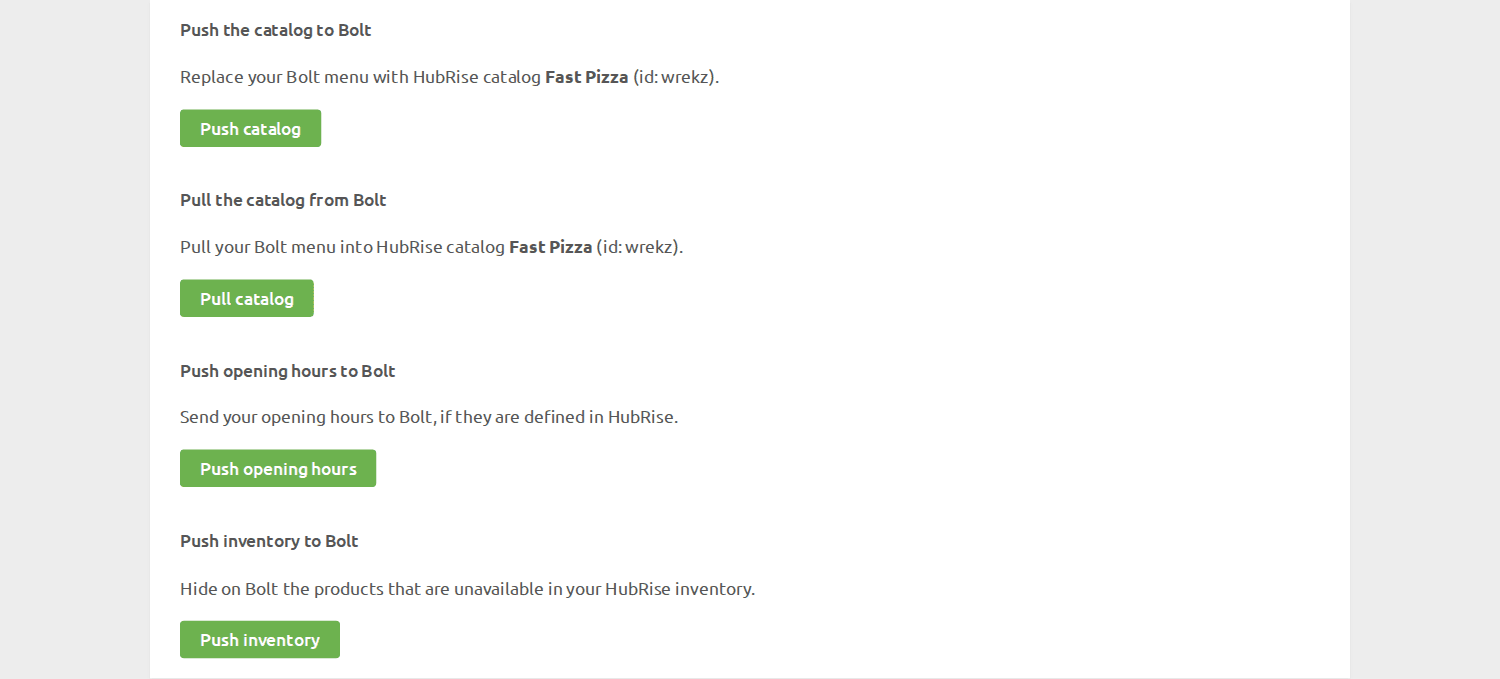
From the Actions page, you can perform the following actions:
- Push Catalog: Push the catalog to Bolt. For more details, see Push Catalog.
- Pull Catalog: Pull the menu from Bolt into a HubRise catalog. For more details, see Pull Catalog.
- Push Opening Hours: Send your opening hours to Bolt, if they are defined in HubRise.
- Push Inventory: Push your HubRise inventory to Bolt.
Language and Navigation
In the top right corner of the screen, you can click on the arrow  to expand the menu. From there, you can change the language of the page to English or French.
Clicking on the Bolt and HubRise logos on top of any page of Bolt Bridge will bring you back to the Latest Operations page.