
Bolt Bridge
- home
- Apps
- Bolt Bridge
- Configuration

Configuration
The configuration page allows you to customise the behaviour of Bolt Bridge based on your preferences. These are divided into different sections for an easier navigation.
Language

Choose the language to use for generic items such as Delivery charge. These names may appear in your EPOS and in customer receipts.
Orders
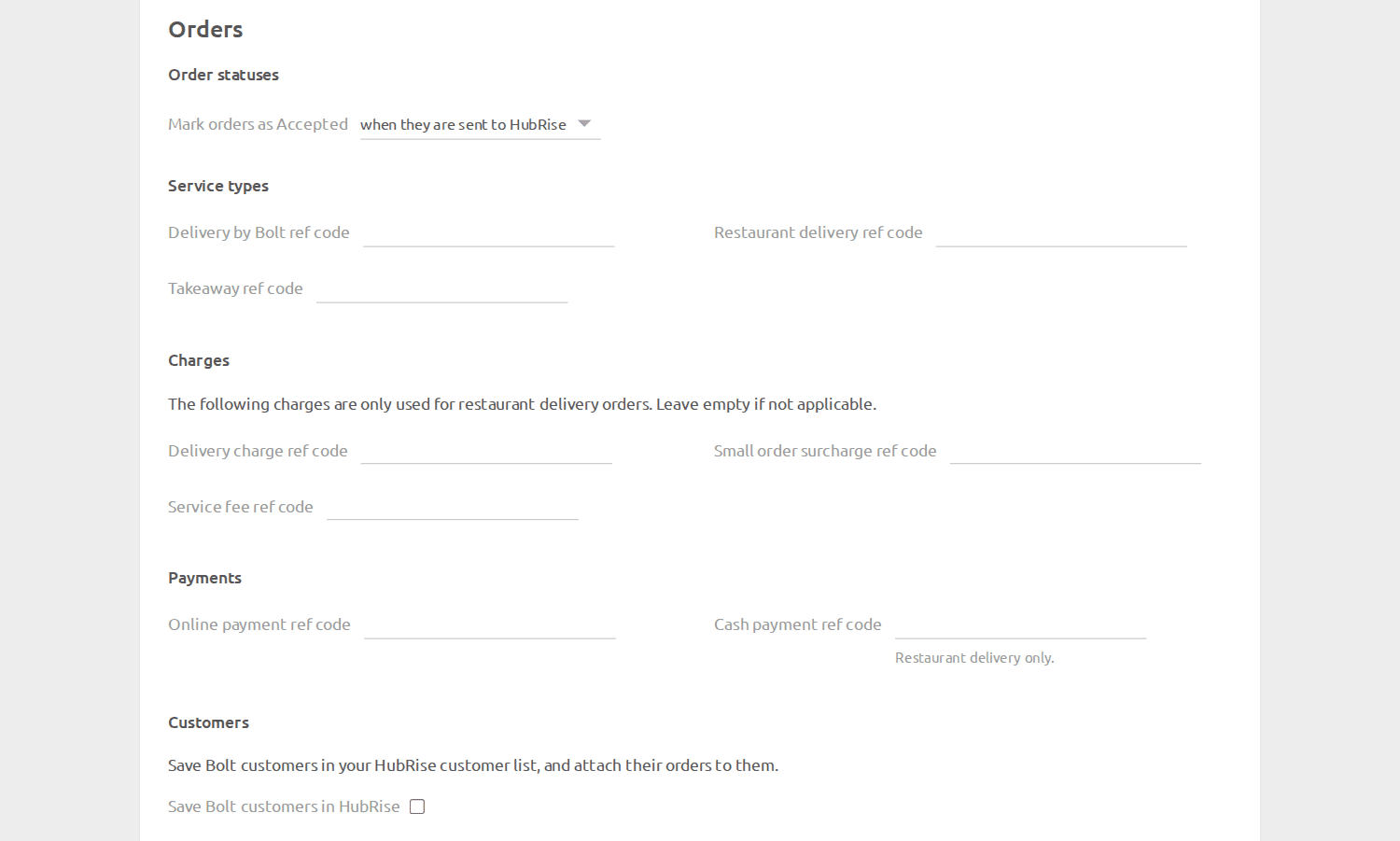
Order Statuses
Bolt requires you to accept every order you receive. In this section, you can select which HubRise status sends an order confirmation back to Bolt. Refer to your EPOS documentation on the HubRise website to verify the correct value.
The available options are:
- Immediately when they are sent to HubRise.
- When their HubRise status changes to
received. - When their HubRise status changes to
accepted.
IMPORTANT NOTE: If an order is not accepted in time, Bolt cancels it automatically and sets the store as not available. If the Enable order acceptance sync option is active, the bridge reopens the store based on your HubRise location status. Otherwise, the store must be reopened from Bolt.
Service Types
Service types such as delivery by Bolt, restaurant delivery or takeaway might require the corresponding ref code entry. Refer to your EPOS documentation on the HubRise website to verify.
Charges
Charges only apply to restaurant delivery orders. If charges apply, a ref code might be required. Refer to your EPOS documentation on the HubRise website to verify.
- Delivery charge: The total delivery fee.
- Small order surcharge: Applied when the order is below the minimum amount.
- Service fee: General service fee.
Payments
Bolt customers can pay for their order either online or by cash. Cash payments are only available for restaurant delivery orders.
This section of the configuration page allows you to specify the ref codes for these two payment methods. Refer to your EPOS documentation on the HubRise website to verify the correct codes to use.
If the cash payment ref code is left empty, cash payments will not be encoded in the order.
Customers
Select the Save Bolt customers in HubRise checkbox to save Bolt customers in your HubRise customer list. Otherwise, orders are created as guest orders, and the customer details are included directly in the order.
Catalog
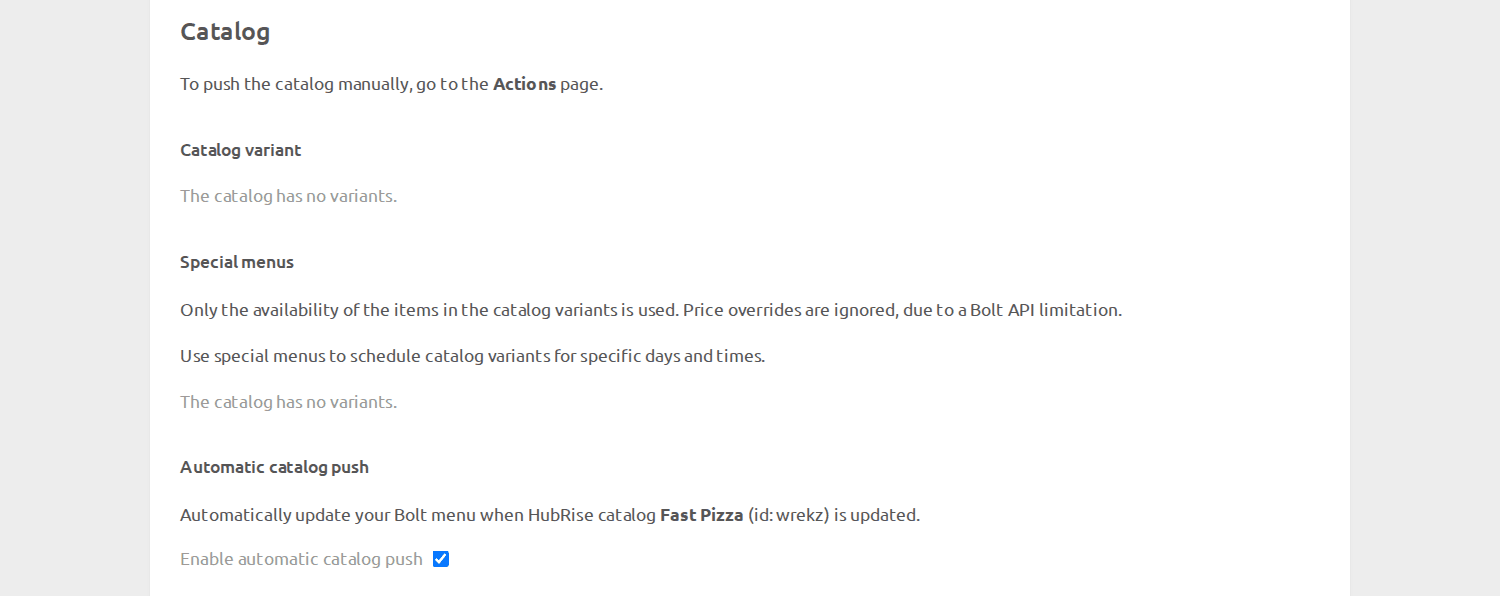
Catalog Variant
Catalog variants give you the flexibility to disable specific items or adjust prices for Bolt.
If your catalog includes variants, you have the option to select which one to use. When (none) is selected, the default items along with their standard prices are used.
Special Menus
Special menus allow you to offer different items at different times of the day, for example a lunch menu. Each special menu combines a catalog variant with a weekly availability: days of the week and a time window.
Items that are only available in a special menu variant are pushed to Bolt with time restrictions matching the menu's availability. Items available in the default catalog variant remain available at all times.
Outside their availability periods, items appear greyed out on the Bolt menu and cannot be ordered.
IMPORTANT NOTE: Special menu variants only control item availability: price overrides are ignored, due to a Bolt limitation.
Automatic Catalog Push
Select the Enable automatic catalog push checkbox to synchronise your HubRise catalog with Bolt whenever it gets updated.
IMPORTANT NOTE: Pushing your catalog to Bolt erases the entire menu and creates a new one. Any manual edits made directly on Bolt will be lost.
Location
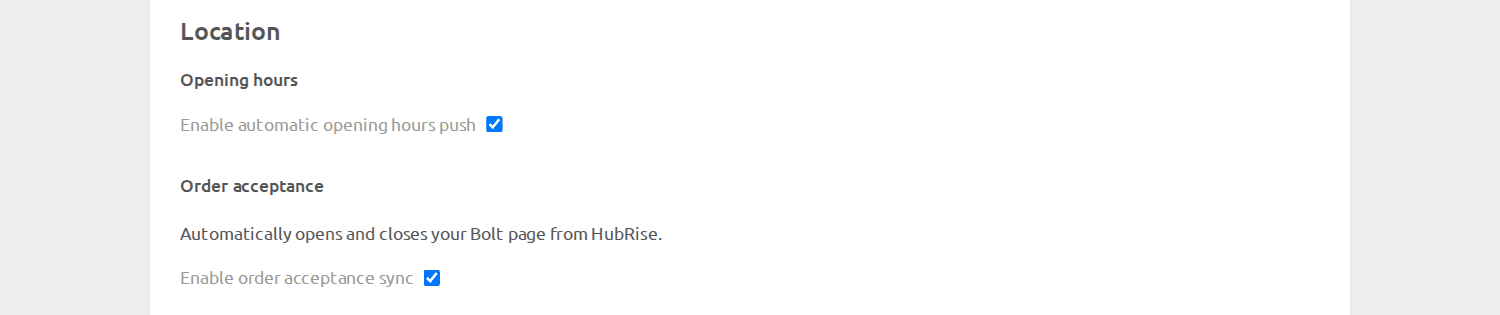
Opening Hours
Select the Enable automatic opening hours push checkbox to update your opening hours on Bolt whenever they get updated in HubRise.
Order Acceptance
Select Enable order acceptance sync to automatically open and close your Bolt page based on your HubRise location status.
When enabled, changes to your store status in HubRise automatically update on Bolt. This includes pausing orders when your location is closed or busy.
Inventory

Through inventory synchronisation, products that have a stock quantity of zero can be hidden on your Bolt store.
Select the Enable automatic inventory push checkbox to synchronise your HubRise inventory with Bolt whenever it gets updated.
Save the Configuration
To save the configuration, click Save at the top of the page.
Reset the Configuration
If you need to reset the configuration, click Reset the configuration at the bottom of the page.
IMPORTANT NOTE: Resetting the configuration will instantly disconnect the bridge from Bolt. You will need to re-enter your Provider Integration ID to restore the connection.
Resetting the configuration does not delete the operation logs displayed in the main page.