
WeDely

Configuration
Depending on the EPOS or other apps connected to WeDely via HubRise, ref codes may be required to correctly process service types, payment methods, charges, and discounts. Refer to the connected apps' documentation on the HubRise website to verify.
You might also need to configure WeDely to pull a specific catalog variant from HubRise.
These settings are available in the WeDely back office. To access them, follow these steps:
- From the WeDely back office, click My Restaurant.
- Open the HubRise tab.
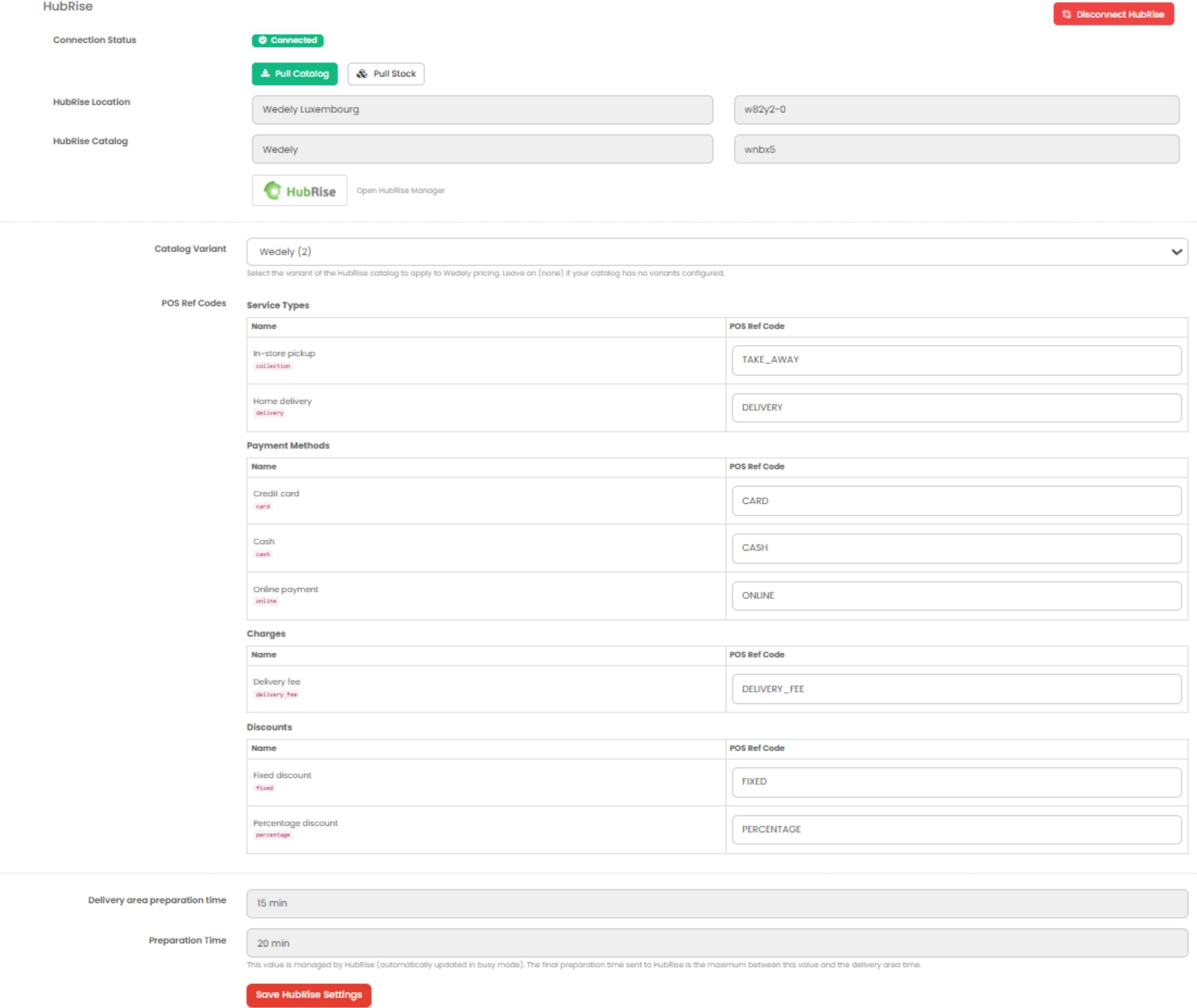
- You should now see the HubRise configuration page:
Connection Status, Location, and Catalog
The top part of the page shows the HubRise location and catalog currently connected to WeDely, as well as the connection status. If you are connected to the wrong location, or you need to use a different catalog, you can disconnect and connect again with the correct location and catalog. For more information, see section Connect to HubRise.
Pull Catalog and Pull Stock
You can pull a HubRise catalog from the WeDely configuration page, by clicking the Pull Catalog button. For more information, see section Pull the Catalog.
You can also manually pull inventory into WeDely by clicking the Pull Stock button. You normally do not need to do this, as inventory is automatically updated in WeDely whenever it is updated in HubRise. This option cannot be disabled.
Settings
Catalog Variant
Catalog variants give you the flexibility to disable specific items or adjust prices for WeDely.
In the Catalog Variant dropdown, you can select the HubRise catalog variant you want to use for WeDely. If your HubRise catalog does not have variants, or you want to pull all items with their default prices, select the (none) option.
POS Ref Codes - Service Types
Service types such as In-store pickup or Home delivery might require a corresponding POS Ref Code entry. Refer to your EPOS documentation on the HubRise website to verify.
POS Ref Codes - Payment Methods
WeDely customers have three options to pay for their orders:
- Credit Card: card payment on delivery via a mobile payment terminal.
- Cash: cash payment on delivery.
- Online: pre-authorised online payment via Stripe, Apple Pay, Google Pay, or payment link.
This section allows you to specify the ref codes for these three payment methods. Refer to your EPOS documentation on the HubRise website to find the correct codes to use.
POS Ref Codes - Charges
Specify the ref code for Delivery fee here. Refer to your EPOS documentation on the HubRise website to find the correct code to use.
POS Ref Codes - Discounts
Here you can specify the ref codes for Fixed discount and Percentage discount. Refer to your EPOS documentation on the HubRise website to find the codes to use.
Automatic Order Acceptance
By default, WeDely orders arrive in HubRise with the New status, and your EPOS moves them to Accepted. If an order is not accepted within a reasonable time (a few minutes), WeDely contacts the location.
If you want WeDely to consider orders as accepted as soon as they are sent to HubRise, and send them with the Accepted status, tick the Automatic Order Acceptance checkbox.
Preparation Times
At the bottom of the page, two read-only times are displayed. WeDely uses them to estimate when a courier should arrive at the restaurant:
- Delivery area preparation time: The minimum time WeDely needs to send a courier to the restaurant. It depends on the restaurant's location and cannot be edited.
- Preparation Time: The kitchen preparation time, updated automatically from HubRise.
WeDely uses the larger of these two times as the final preparation time. This value is sent back to HubRise along with orders, and determines when the courier is dispatched.
Save the Settings
To save the settings, click Save HubRise Settings at the bottom of the page.