Restomax

Connect to HubRise
IMPORTANT NOTE: If you do not have a HubRise account yet, register on our Signup Page. It only takes a minute!
Connect Restomax
To ask the Restomax support team to connect your EPOS to HubRise, proceed as follows:
- Grant Restomax access to your HubRise account. For more information, see Grant Access to Restomax Support.
- Contact the Restomax support team who will establish the connection to HubRise. For more information, see Contact Restomax Support.
To connect Restomax to HubRise, Restomax Admin users will follow these steps:
- From the Restomax back office, click on the settings button represented by a gear icon in the left-hand menu.
- In the Settings menu, click Integrations.
- Select HubRise in the integrations list. If you cannot see HubRise, make sure the Accounting category is selected.
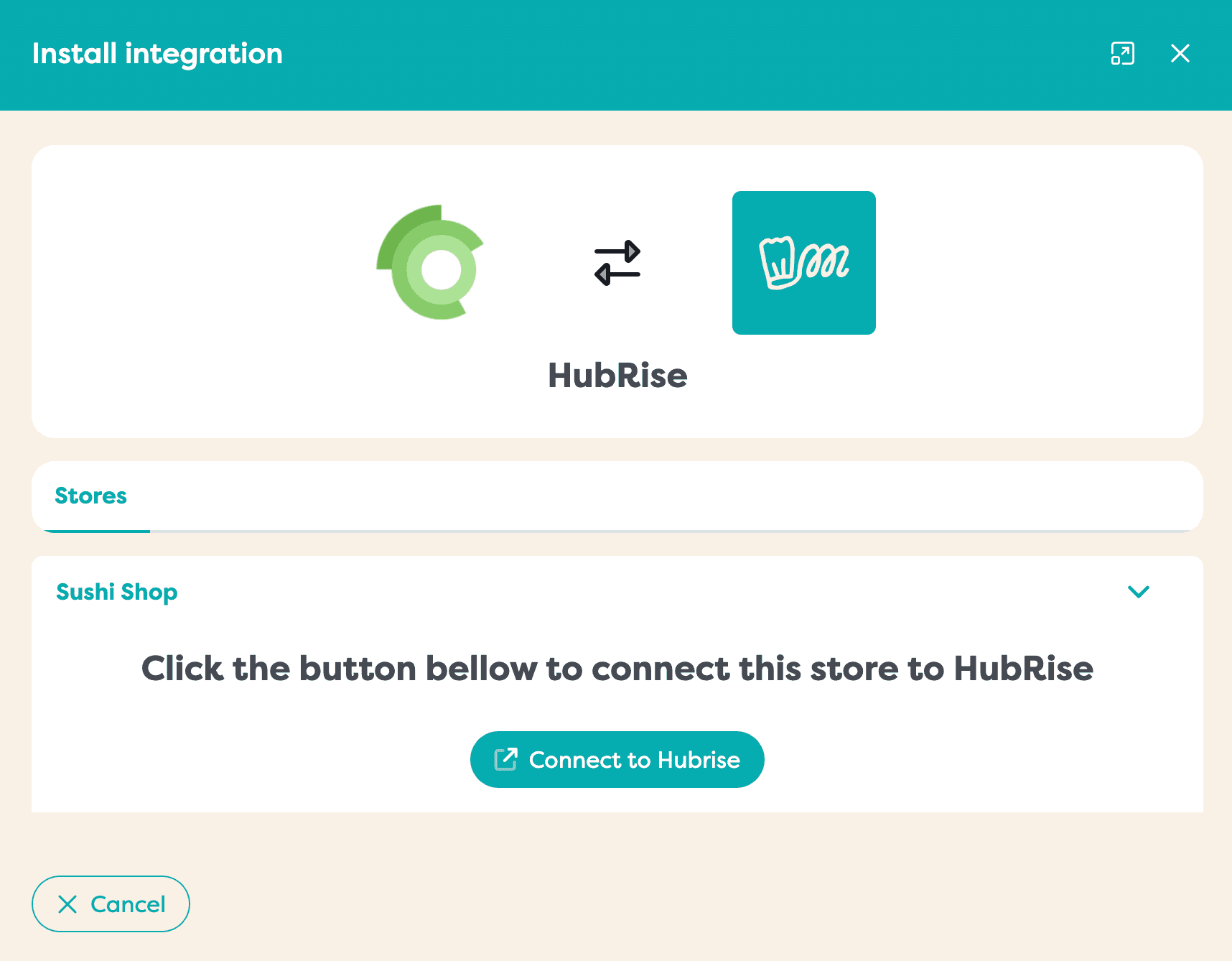
- Click Install integration, then select the Restomax store you want to connect.
- Click on the Connect to HubRise button. You are redirected to the HubRise interface. If this is your first time logging in, create a HubRise account. For more information, check out our Getting Started Guide.
- If your account has multiple locations, expand the Choose location section, select the desired location, and click Allow. For locations with multiple customer lists or catalogs, click Next to display the corresponding dropdown lists, and select the desired options.
- Click Authorise.
- You are redirected to the Restomax interface, and the connection to HubRise is established.
Grant Access to Restomax Support
To ask the Restomax support team to connect your EPOS and to facilitate the handling of your support requests, you need to grant your Restomax provider access to your HubRise account.
To grant access to Restomax, proceed as follows:
- From the HubRise back office, select SETTINGS in the left-hand menu.
- In the Permissions section, enter
support@restomax.com. - Click Add User.
- From the predefined role dropdown, select Technical Partner.
- Click Set Permissions.
Adding a user is the recommended way to grant access to a third party to your HubRise account or location. Sharing passwords is not recommended for security reasons. For more information on permissions, see the Permissions help page.
Contact Restomax Support
To request the connection of your EPOS, contact Restomax support by email at support@restomax.com. You can include support@hubrise.com in copy for a coordinated follow-up between our two teams.
Include in your request the name of your HubRise account, its HubRise identifier and the location to connect. For more information, see Location Name and ID.
Disconnect Restomax
If you need to temporarily stop receiving orders from HubRise, you can block the connection between Restomax and HubRise. For more information, see Block or Disconnect App.
To disconnect Restomax from HubRise, proceed as follows:
- From the Restomax back office, click on the settings button represented by a gear icon in the left-hand menu.
- In the Settings menu, click Integrations.
- Select HubRise in the integrations list. If you cannot see HubRise, make sure the Accounting category is selected.
- Click Edit, then select the Restomax store you want to disconnect.
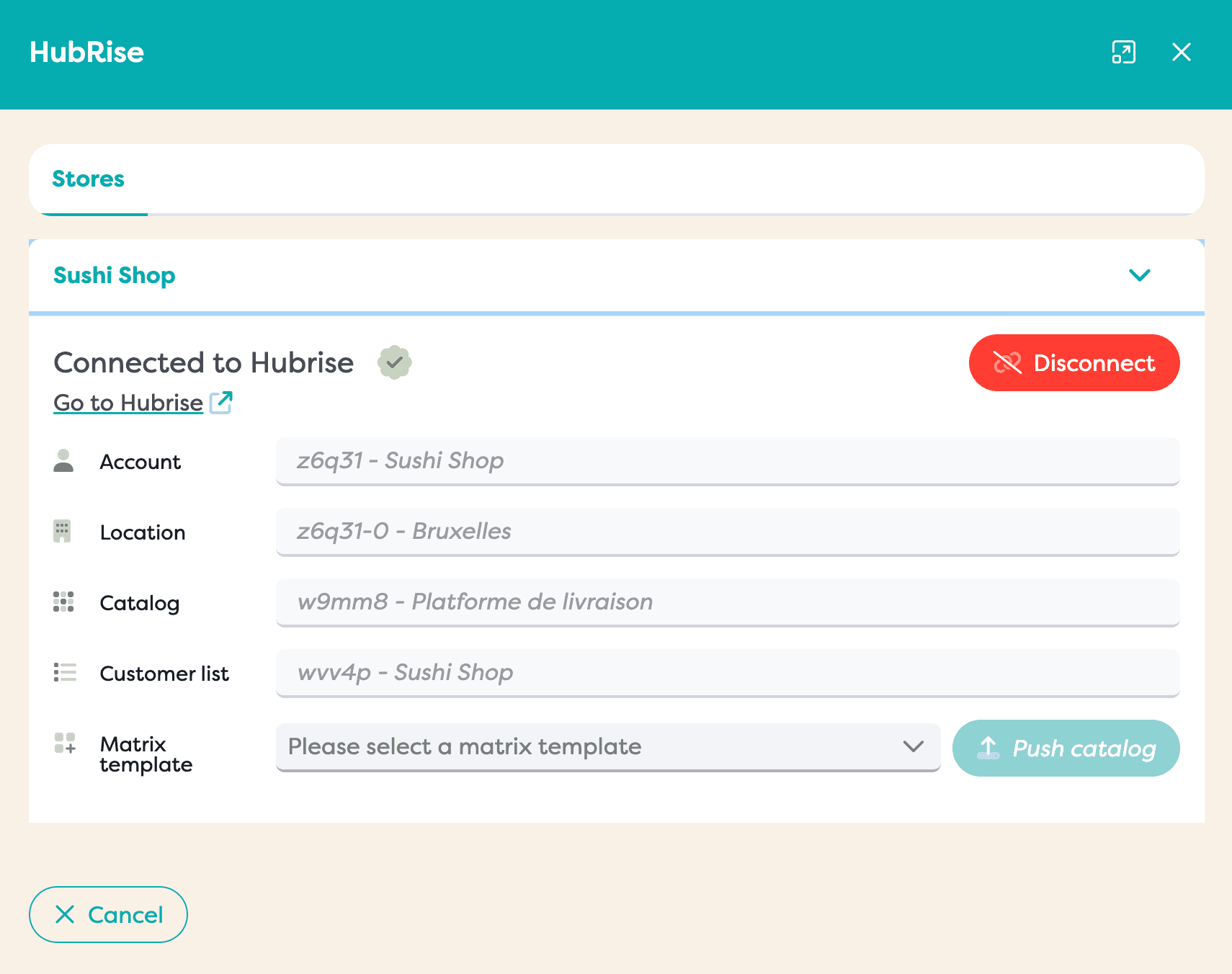
- Click on the Disconnect button.
- Restomax is now disconnected from HubRise.