
Troubleshooting
- home
- Apps
- Lightspeed Restaurant
- Troubleshooting
- No Staff Error
Troubleshooting
Troubleshootingexpand_more
No Staff Error
This page explains how to troubleshoot orders rejected because the online order staff user is missing in Lightspeed.
"No Staff in Account Task" Error
Orders sent to Lightspeed Restaurant might fail with the following error in the logs of Lightspeed Restaurant Bridge:
{ "reason": "No staff in account task", "thirdPartyReference": "xxx|xxx-0|yyy", "businessLocationId": 123456789, "type": "ORDER", "status": "FAILURE", "completionMode": "IMMEDIATE", "errors": { "account": { "type": "MISSING_STAFF" } }}
This error means that Lightspeed cannot find the staff user under which online orders are recorded. It has three possible causes, described below.
The first cause can only be fixed by the Lightspeed support team, as the setting is not visible to merchants. The other two are handled by the merchant.
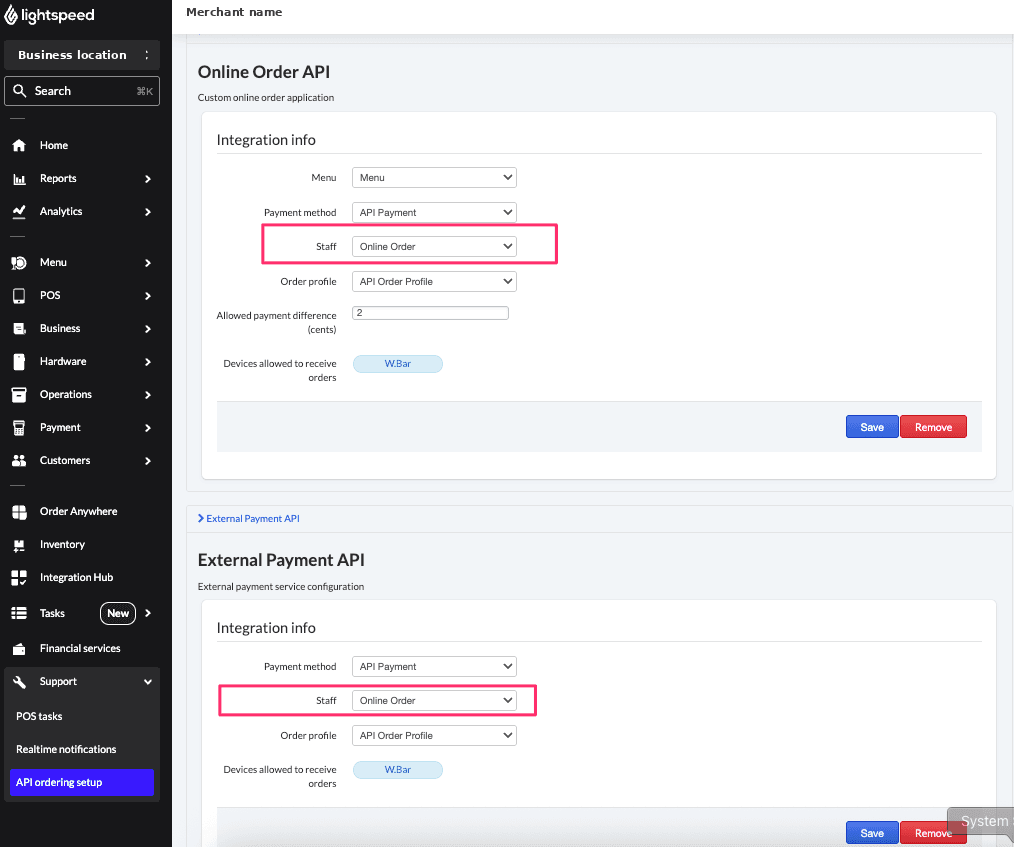
Staff Not Set in the Online Order API
This section is for the Lightspeed support team only. The page below is not accessible to merchants, so there is nothing for a merchant to check here.
In the Lightspeed back office, select Support, then API ordering setup. In the Online Order API section, the Staff field must be set, usually to Online Order.
Online Order POS User Deactivated
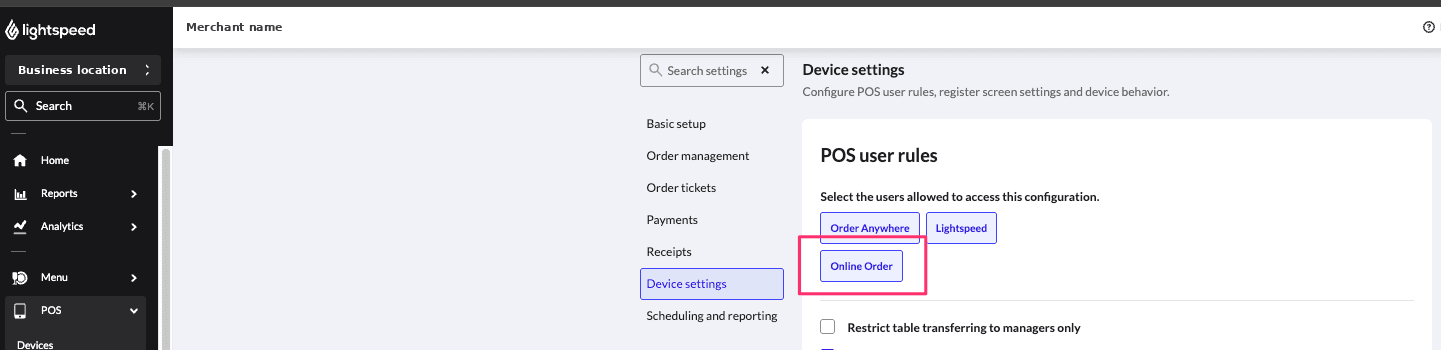
The Online Order POS user must stay active. In the Lightspeed back office, select POS, then Device settings, and check that Online Order is selected in POS user rules.
This user is hidden on the iPad by default, and must never be disabled.
Configuration Not Reloaded on the iPad
If both settings above are correct, the order most likely arrived before the iPad reloaded its configuration. Reload the configuration on the main (active) iPad, then resend the order.