
MyFoodFast
- home
- Apps
- MyFoodFast
- Map Ref Codes
Map Ref Codes
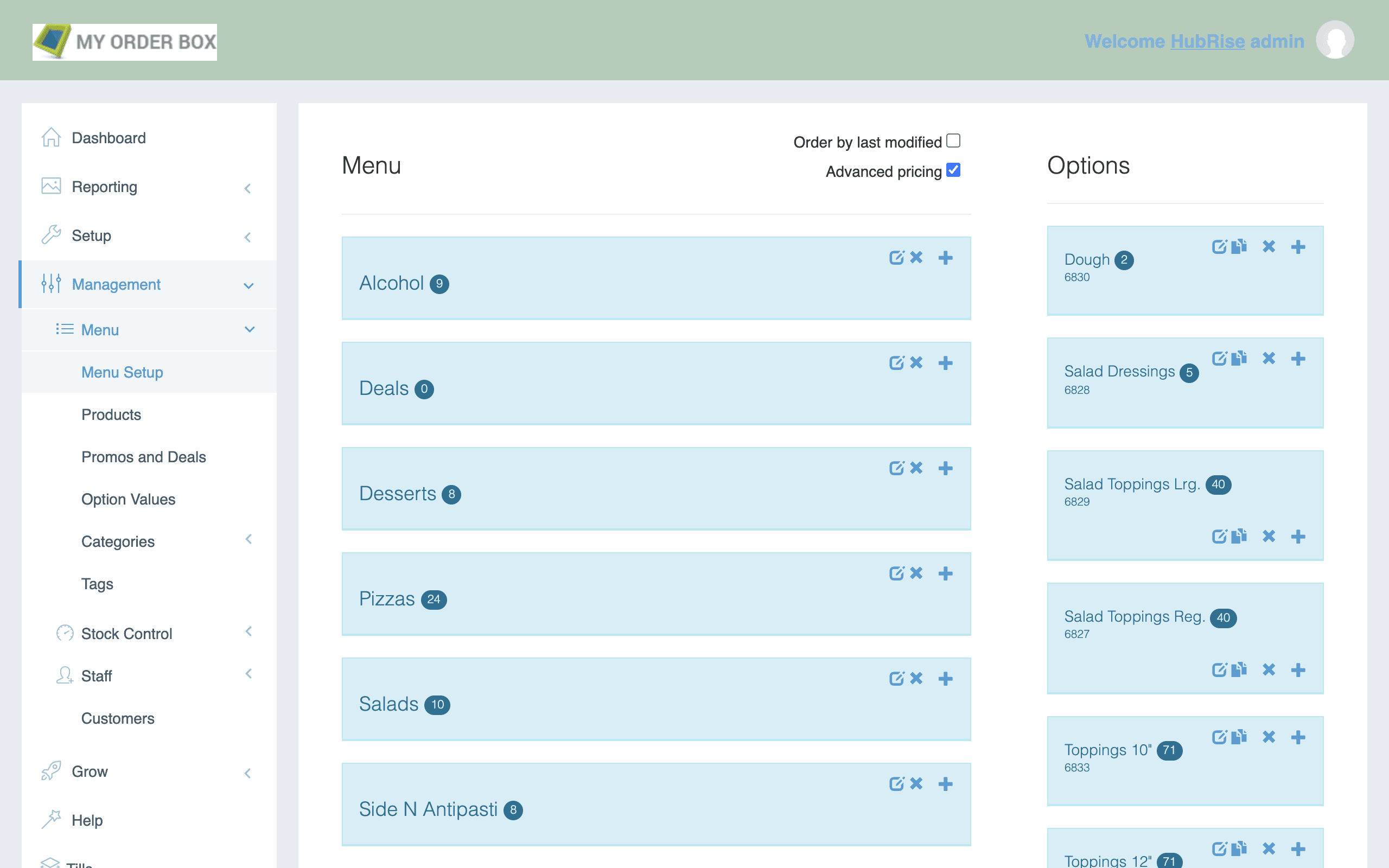
When you create a product or option, MyFoodFast automatically assigns a ref code. You can manage your products and find the relative ref codes from the Menu setup page in your MyFoodFast back office.
SKUs
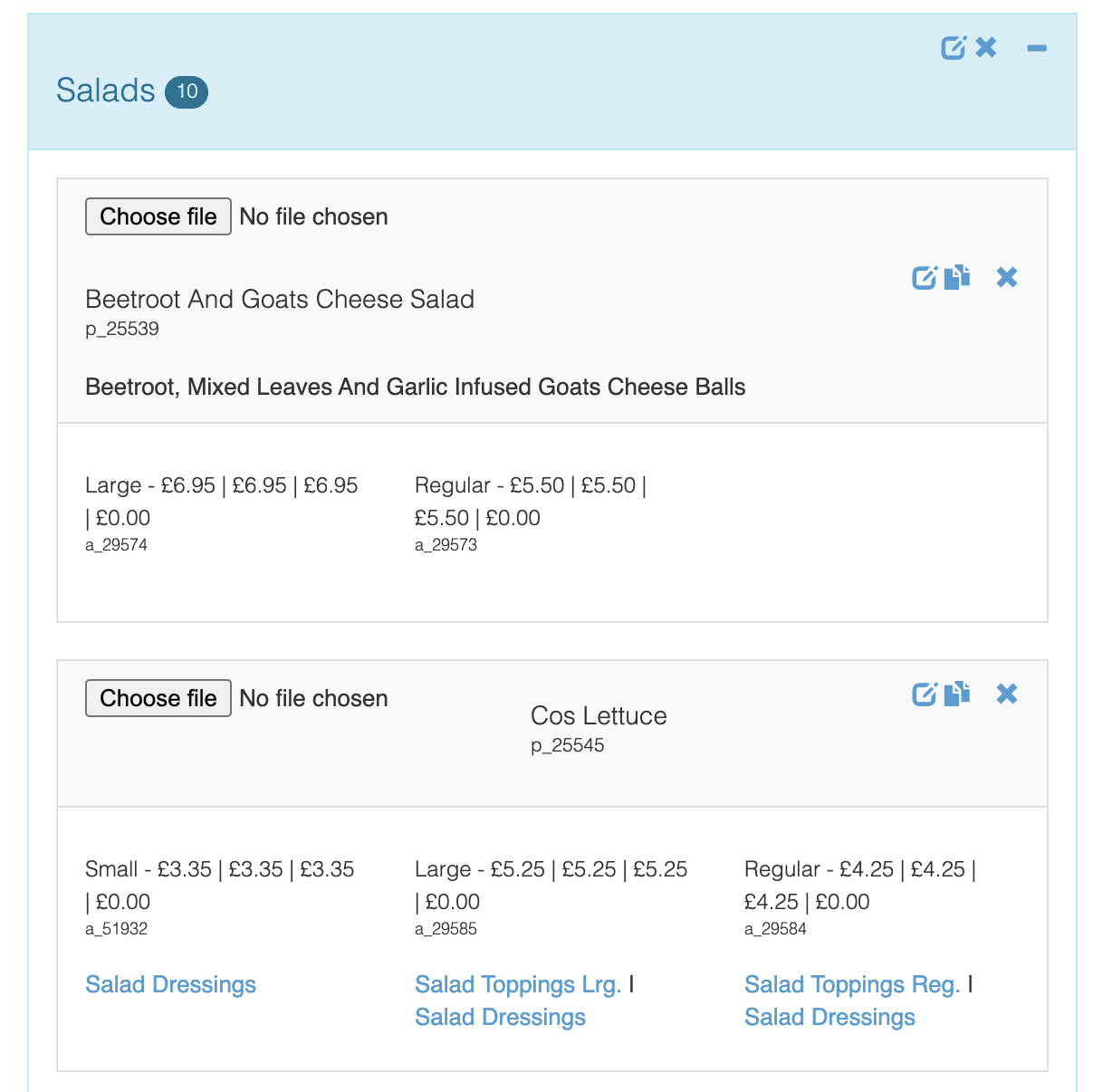
If you need to find the ref code associated to a specific product, follow these steps.
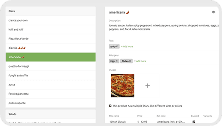
- From the navigation menu, go to Management > Menu > Menu setup.
- From the list of categories under the Menu column, double-click on the category that contains the product.
- Identify the product from the list. The product ref code appears under the name, and typically starts with the prefix
p_orpa_.
Options
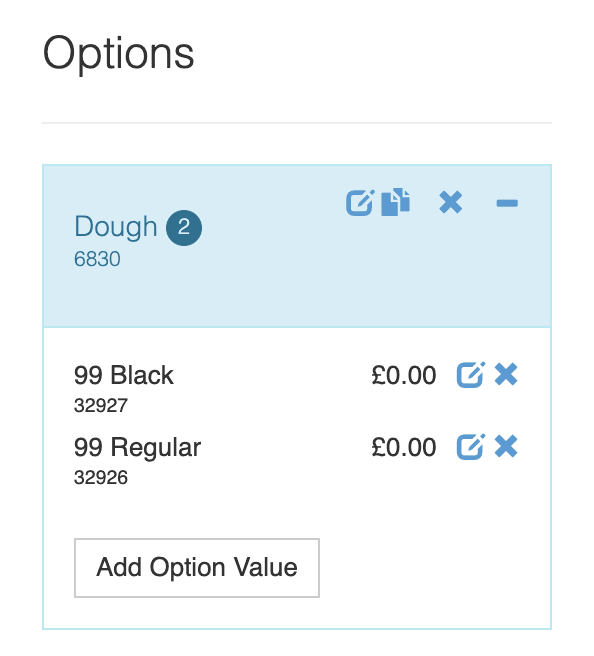
If you need to find the ref code associated to a specific option, follow these steps.
- From the navigation menu, go to Management > Menu > Menu setup.
- From the list of options under the Options column, double-click on the option that contains the option value.
- Identify the option value from the list. The option ref code appears under the name, and is typically a number without prefix.
Feedback on this page