
FAQs
- home
- Apps
- Lightspeed Restaurant
- FAQs
- How Do I Reload My Lightspeed EPOS device After a Back Office Change?
FAQs
FAQsexpand_more
- How Do I Get A Lightspeed Test Account?
- How can I take advantage of the new Lightspeed Restaurant integration features?
- I Just Migrated from Deliverect. What Should I Do To Receive Orders?
- How Do I Create Ref Codes In Lightspeed?
- How Do I Reload My Lightspeed EPOS device After a Back Office Change?
- Why Are Some Orders Not Received Correctly in Lightspeed?
- I Missed An Order, How Do I Resend It To Lightspeed Restaurant?
How Do I Reload My Lightspeed EPOS device After a Back Office Change?
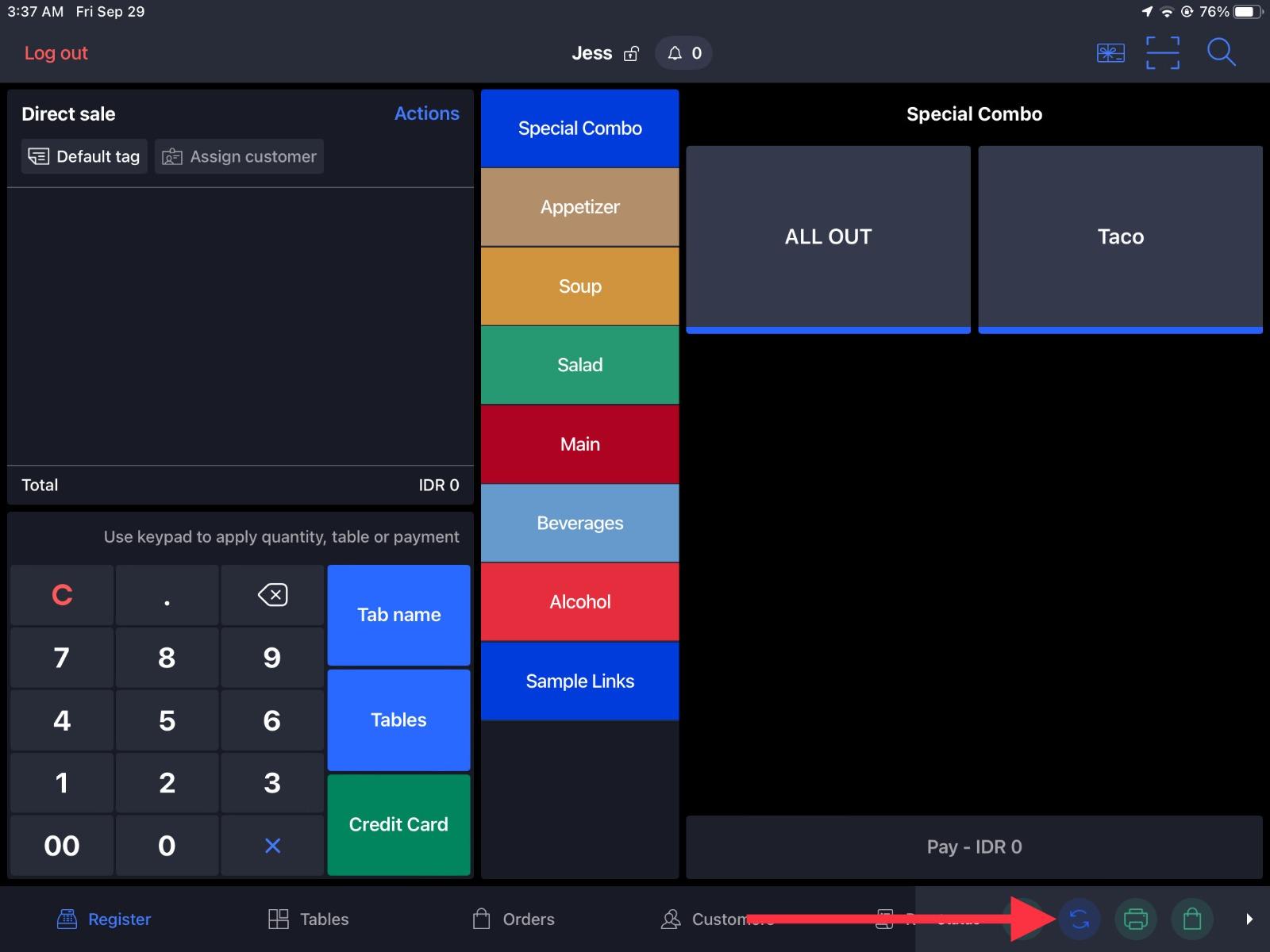
After any change to the configuration in the Lightspeed back office, you must reload your EPOS devices for the changes to take effect. Follow the steps below from the EPOS device.
Old Lightspeed interface
- Tap Status, to the right of the Settings tab.
- Check the colour of the reload icon, represented by two arrows:
- If the reload icon is orange, updates are available.
- Otherwise, the EPOS device is already up to date.
- Tap the reload icon.
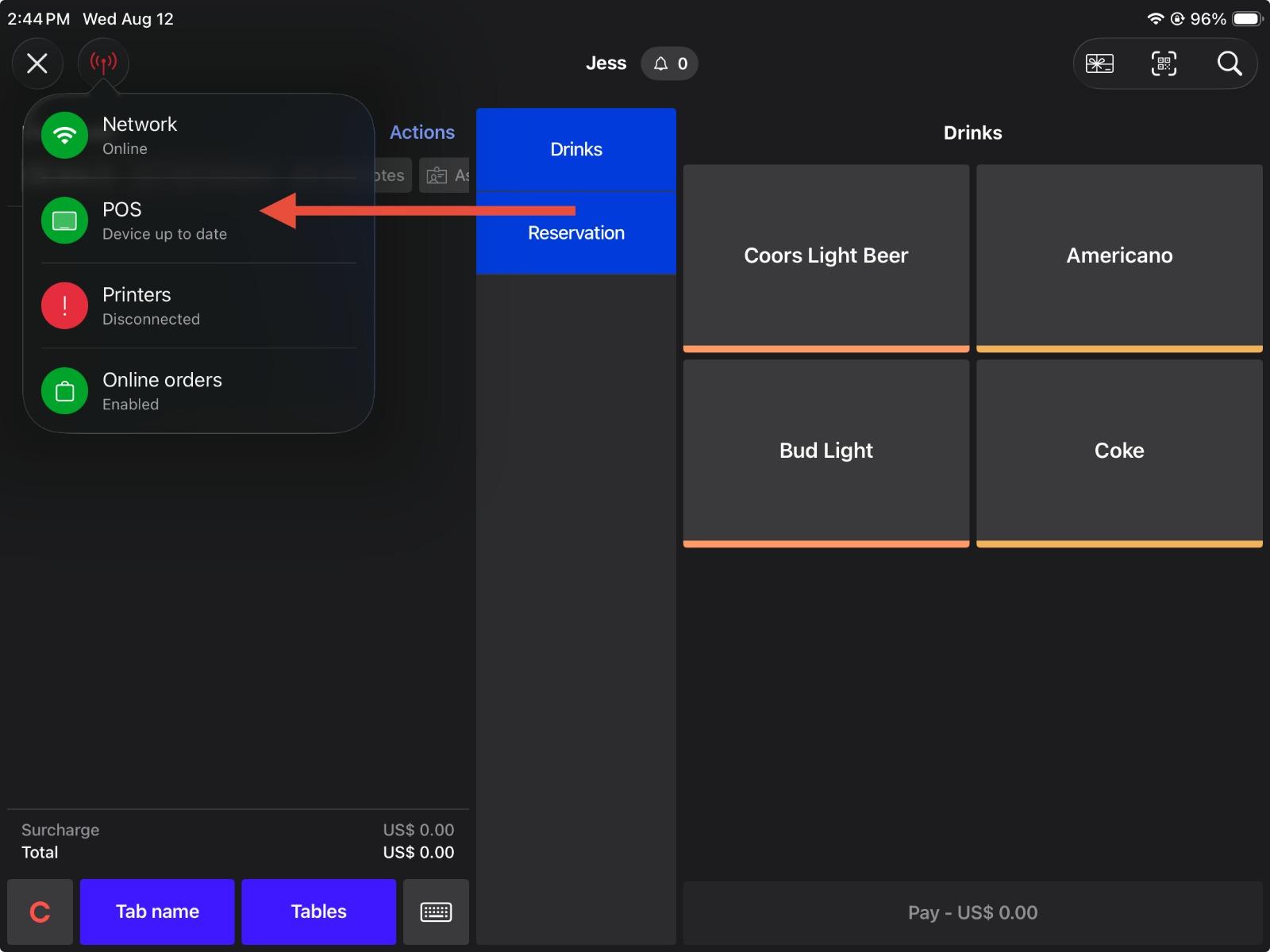
New Lightspeed interface (from 2026)
Feedback on this page